Report designs
Upload reports you designed in Jaspersoft Studio, and print them as PDFs.
On this page
Report designs keeps reports you design yourself in Jaspersoft Studio, a free desktop program, and upload as a .jrxml file. eaasycount prints them as PDFs. It is for someone who designs reports; to change the look of your invoices and receipts, use Document templates instead.
Upload a report
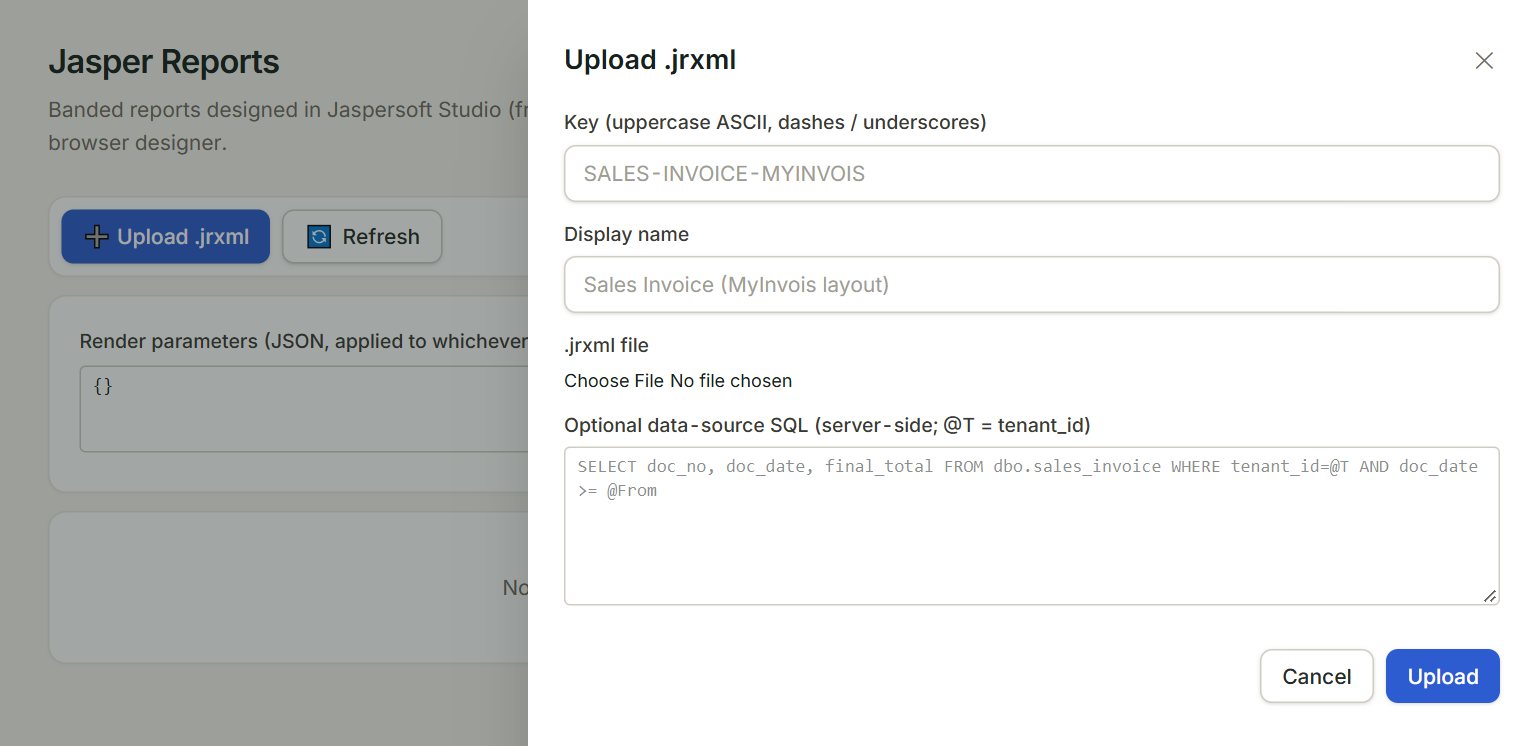
- Key: a short code in capitals, for example DEBTOR-LIST. Each report needs its own.
- Display name: the name shown in the list.
- .jrxml file: the report as saved in Jaspersoft Studio. The key and the name fill in from the file's name.
- Optional data-source SQL: the query that gives the report its rows. Paste it if the report came with one; leave it empty if not.
- Upload: adds the report to the list.
- In the menu, open Settings, then Report designs.
- Click ➕ Upload .jrxml.
- Choose the .jrxml file, then check the Key and Display name.
- Paste the Optional data-source SQL, if you have one.
- Click Upload.
Only an admin can upload, change or delete a report.
Print a report
Each report in the list has 🖨 Render: it opens the report as a PDF in a new tab. If the report asks for values, such as a date, type them first in Render parameters, in the same form as the example in the box: {"AsOfDate":"2026-11-30"}.
On each row, 📝 Edit changes the name, the description, the query or the file, and 🗑 deletes the report. The Status switches with a click: active reports print, disabled ones do not.
If something goes wrong
- A report with key '…' already exists.: give the new report another Key.
- Report not found or inactive.: the report is disabled. Click its status to make it active.
- Parameters must be valid JSON.: put each name and each date in double quotes, with a colon between, as in the example.