Sales returns
Take goods back from a customer. The stock comes back and the customer is credited.
On this page
A sales return records goods a customer brings back. When you post it, the stock comes back, the cost of the sale is reversed, and a customer credit note is made for the value, so the customer owes you less.
Post a return
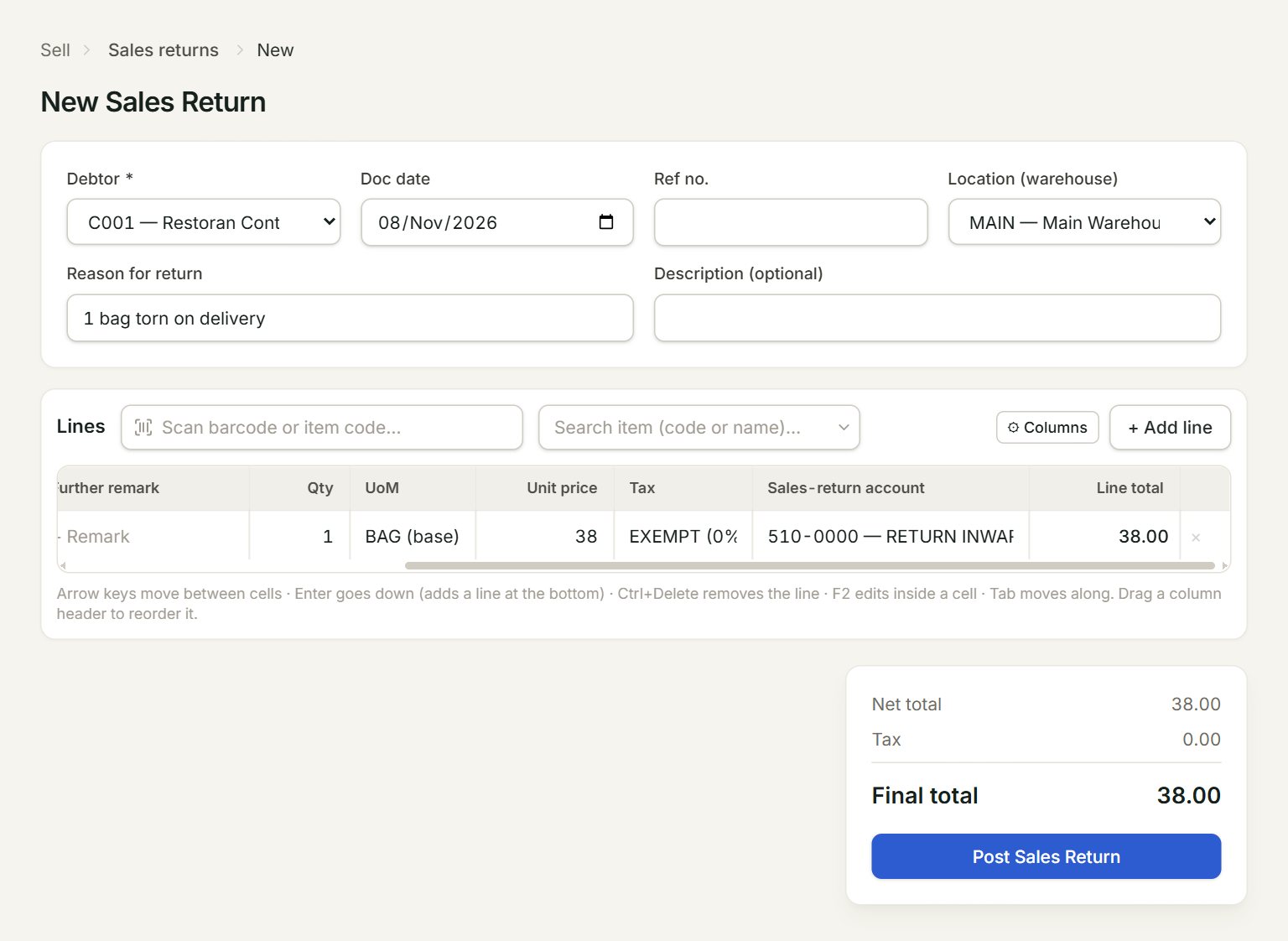
- Debtor: the customer bringing the goods back.
- Location (warehouse): where the goods go back into stock. The ★ one is your main location.
- Reason for return: why they came back. It is required, at least 5 characters.
- Scan a barcode or type an item code here and press Enter: the line is added.
- Sales-return account: where the return is booked, for example RETURN INWARDS.
- Post Sales Return: posts the return and its credit note.
- In the menu, open Sell, then Sales returns, and click New.
- Choose the Debtor, and check the Doc date and the Location (warehouse).
- Type the Reason for return, for example "Damaged in transit".
- Add each item that came back, with its Qty and the Unit price the customer paid.
- Pick the Sales-return account on each line.
- Click Post Sales Return. The screen shows the return's number and its credit note's.
The return lowers what the customer owes. It is not set against an invoice by itself: it waits as credit on the customer, and shows in Customer credit notes with the same reason.
The list
Sales Returns lists every return with its Reason and total. Linked SI shows the bill the goods came from, when the return was made against one. Select a return and click Preview or Print to see it. A posted return is final: it cannot be changed.
If something goes wrong
- "A return raised here has no original bill behind it, so it needs a reason of at least 5 characters — and an admin sign-in.": type a longer reason.
- "A return without the original bill has to be approved by an admin. …": ask an admin to sign in and post it.
- "No sales-return account…": pick a Sales-return account on each line.