MyInvois (e-invoice)
Save your company's MyInvois details, then submit sales invoices to LHDN from the Sales Invoices list.
On this page
MyInvois (e-invoice) keeps your company's details for LHDN's MyInvois portal. With them saved, you submit each sales invoice from the Sales Invoices list. Only an admin can open this screen.
The settings
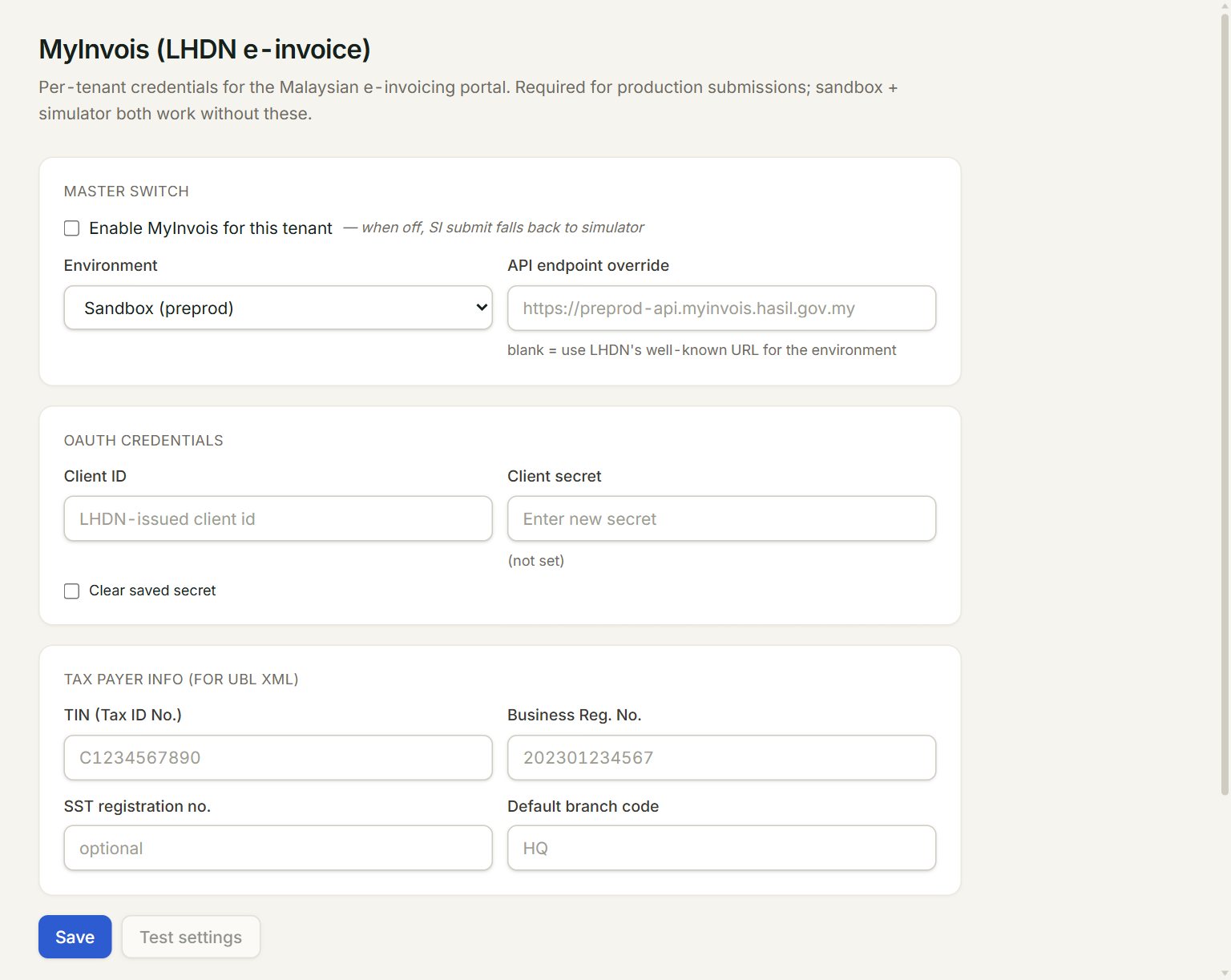
- Enable MyInvois for this tenant: the main switch.
- Environment: Sandbox (preprod) is LHDN's test system; Production is for real e-invoices.
- Client ID: the ID LHDN issued to your company.
- Client secret: type it once. It is never shown again; Saved ✓ under the box means one is kept.
- TIN (Tax ID No.), Business Reg. No., SST registration no. and Default branch code: your company's details.
- Save keeps the settings. Test settings then checks that the saved ID and secret can be read back; it does not contact LHDN.
- In the menu, open Settings, then MyInvois (e-invoice).
- Tick Enable MyInvois for this tenant and choose the Environment.
- Type the Client ID and Client secret.
- Fill in TIN (Tax ID No.), Business Reg. No. and, if you have one, SST registration no.
- Click Save, then Test settings.
Leave API endpoint override empty: eaasycount then uses LHDN's own address for the environment you chose.
Submit an invoice
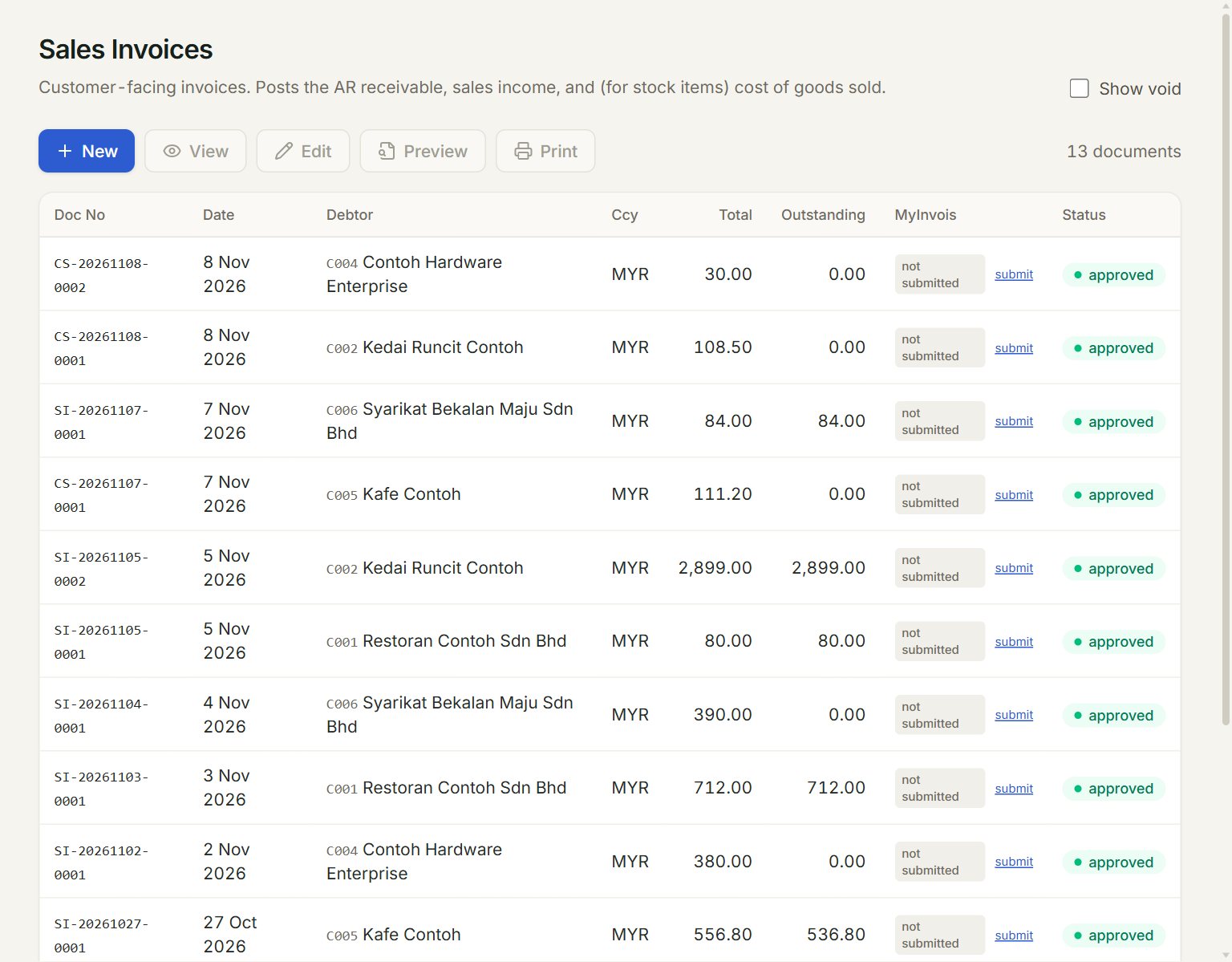
- MyInvois: each invoice's e-invoice status: not submitted, ⏳ Pending, ✓ Valid, ✗ Invalid or Cancelled.
- submit: sends this invoice to MyInvois. Once it has an e-invoice number, QR ↗ opens it on the MyInvois site.
In the menu, open Sell, then Sales invoices. Click submit on the invoice and OK in the box that asks. The next box shows the status and the invoice's e-invoice number (UUID).
If something goes wrong
- Test settings is grey: type the Client secret and click Save first.
- MyInvois is disabled for this tenant.: tick Enable MyInvois for this tenant and click Save.
- MyInvois auth failed: … (after submit): check the Client ID, the Client secret and the Environment, and save again.