Projects and departments
Tag lines with a project or a department, to see the profit and loss of each one.
On this page
A project is a job, a contract or a promotion. A department is a team or a branch. Tag the lines of your documents with them, and the profit and loss shows what each one earned and spent. They are two screens that work the same way: Projects and Departments.
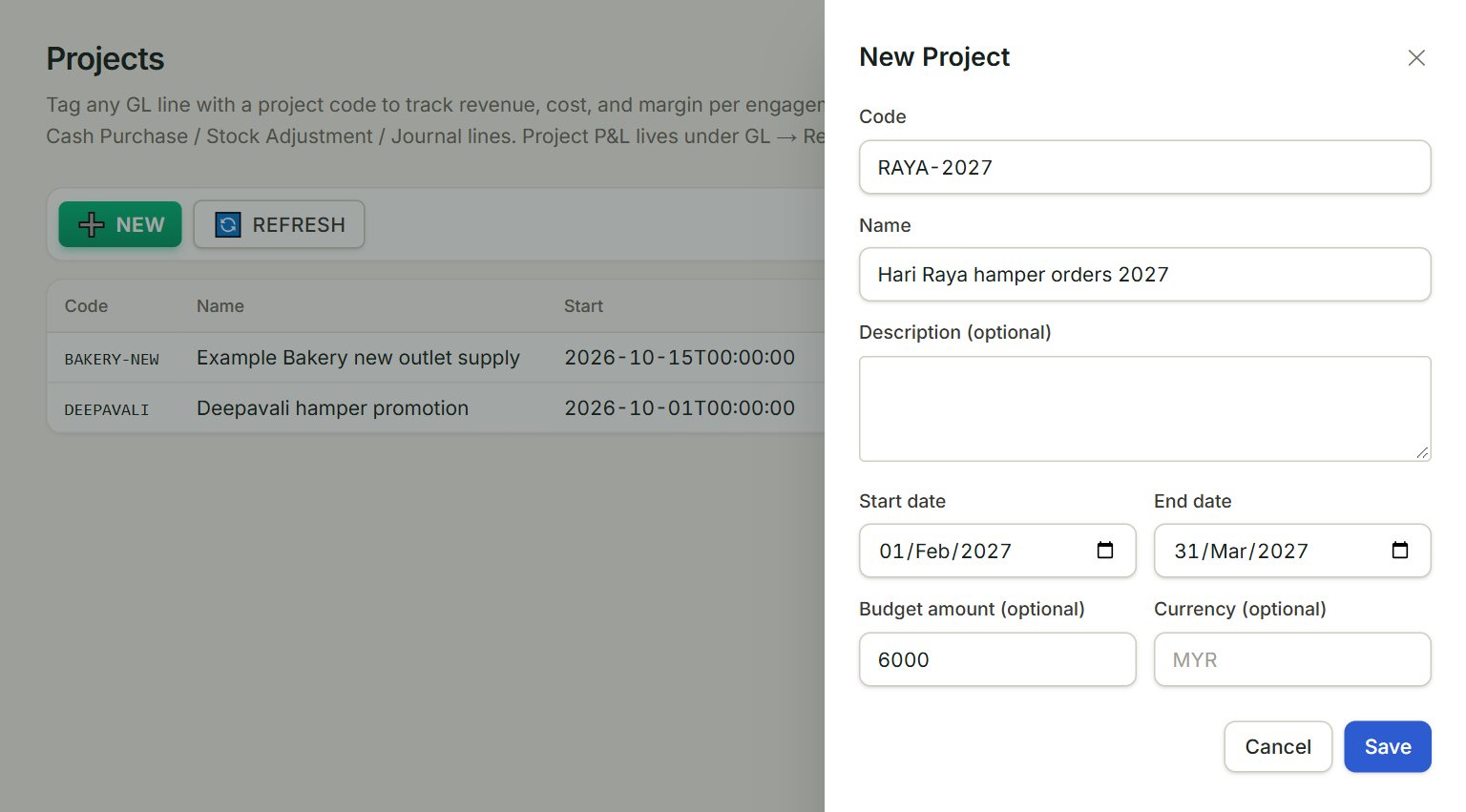
- Code: a short code, for example RAYA-2027. This is what you pick on a line.
- Name: what the project is.
- Start date and End date: optional.
- Budget amount (optional): what you plan to spend.
- Save: adds the project.
Add a project or a department
- In the menu, open Accounting, then Projects (or Departments), and click NEW.
- Type the Code and the Name.
- For a project, add the dates and the budget if you like.
- Click Save.
Tag a line
Pick the code in the Project or Department column of each line you want to count. The columns are on the lines of Journal entries, the Cash book, and sales and purchase documents. On some, such as sales invoices, they start hidden: click ⚙ Columns and tick them.
To see the results, open Profit and loss and click By project or By department.
A project or department is never deleted. To stop using one, click it, untick Active and click Save. It leaves the lists for new lines, and old lines keep it.
If something goes wrong
- Code is required. or Name is required.: fill in both.
- Start date cannot be after end date.: check the two dates.