Goods received
Record what a supplier delivered, before their bill comes.
On this page
A goods received note records what a supplier delivered. You usually make it from a purchase order, then transfer it on to a purchase invoice when the supplier's bill comes.
The screen
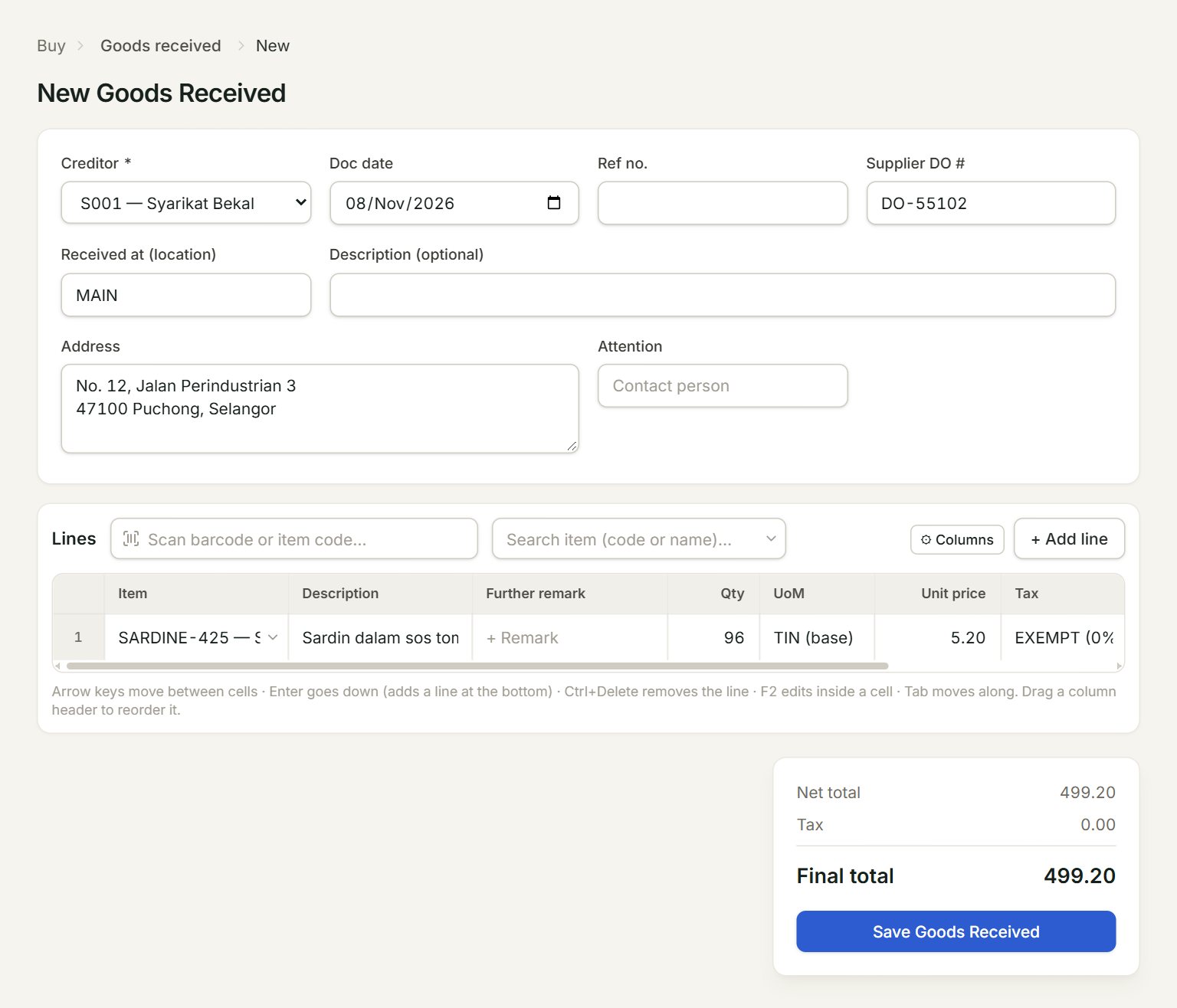
- Creditor: the supplier who delivered.
- Supplier DO #: the number on the supplier's delivery order.
- Received at (location): the location code where the goods went, for example MAIN.
- Scan a barcode or type an item code here and press Enter: the line is added.
- Qty and Unit price: key how many came and what they cost. A serial-numbered item also has a 🔢 button under Serials, further right.
- Save Goods Received: saves the note.
Receive goods against an order
- In the menu, open Buy, then Purchase orders. Select the order and click Edit.
- Click Transfer → and choose Goods Received in Transfer to.
- Set Transfer Now to what came for each line, and click Transfer.
- The new goods received note opens. Fill in Supplier DO # and Received at (location).
- Click Save Goods Received.
Goods that came without an order: open Buy, then Goods received, click New, choose the Creditor and add the lines.
Bill it
When the bill comes, open the note from the list with Edit, click Transfer → and choose Purchase Invoice. Or start a new purchase invoice and click Transfer from…. The list's Transferred column shows where each note went.
If something goes wrong
- Save Goods Received is grey: choose the creditor first.
- "… is serialized — click 🔢 Serials and enter … serial number(s) before saving.": click the line's 🔢 button and key one serial number for each unit.
- The note is read-only and says "Fully transferred.": it is already on a purchase invoice. Change the invoice instead.