Bank reconciliation
Tick off the bank entries in your books against the bank statement, until the two agree.
On this page
Bank reconciliation compares your books with your bank statement. You tick each entry that the statement shows. When the ticked total equals the statement's balance, your bank account agrees with the bank.
The screen
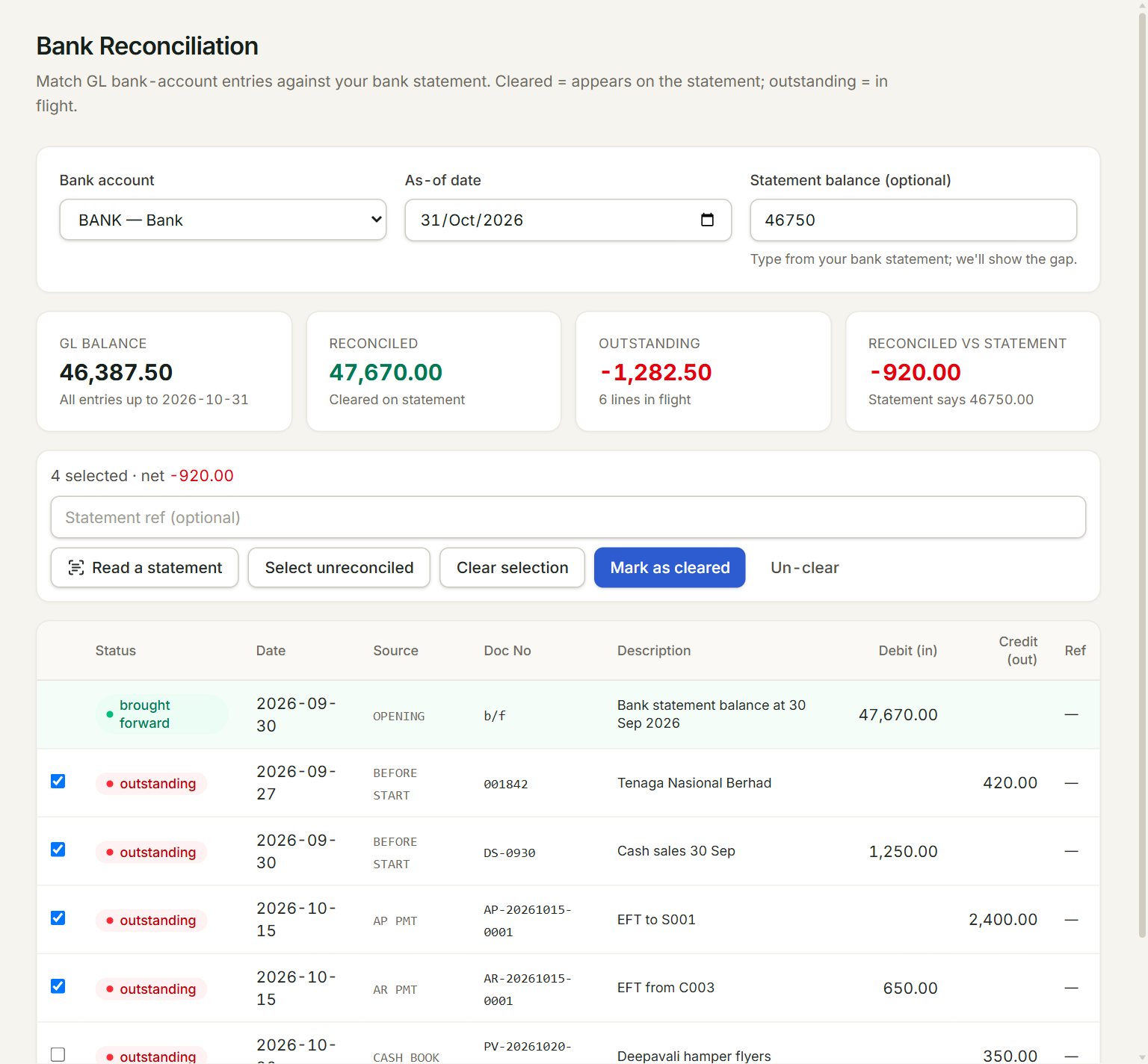
- Bank account: the bank you are reconciling.
- As-of date: set it to the last date on your statement.
- Statement balance: type the closing balance from the statement.
- Reconciled vs statement: shows ✓ Matches once the cleared entries add up to the statement.
- Read a statement: reads a PDF e-statement and ticks the entries it finds.
- Mark as cleared: clears the ticked entries.
Reconcile a statement
- In the menu, open Accounting, then Bank reconciliation.
- Choose the Bank account and set the As-of date to the statement's last date.
- Type the statement's closing balance in Statement balance.
- Tick each entry that is on the statement. Select unreconciled ticks them all.
- Type a reference such as "Oct 2026" in Statement ref and click Mark as cleared.
- Check that Reconciled vs statement shows ✓ Matches.
Let eaasycount read the statement
Click Read a statement and choose the bank's PDF e-statement. A photo or scan works too, but a PDF reads best. The entries that match your books are ticked for you: check them, then click Mark as cleared.
Entries on the statement that are not in your books are listed under On the statement, not in the books. Key them in (bank charges and interest in Cash book, customers' money in Receive payment), then read the statement again.
Your first reconciliation
If you started eaasycount part-way, the first line is brought forward: what the bank statement showed on the day before you started. It is already cleared. Cheques and deposits that had not cleared by then are listed under it as Before start. Tick them when they reach a statement. You key them in Opening balances, on the Bank not yet cleared tab.
If something goes wrong
- Reconciled vs statement shows a difference: an entry is ticked that is not on the statement, or the statement has bank charges or interest that are not in your books yet.
- You ticked an entry by mistake: tick it again and click Un-clear.
- No entries appear: check the Bank account and the As-of date. Only entries on or before that date are listed.