Pay supplier
Record money you paid a supplier and knock it off the bills it pays.
On this page
Pay supplier records a payment you made to a supplier and knocks it off their unpaid bills. The screen calls it an AP payment: AP, accounts payable, is what you owe your suppliers.
The screen
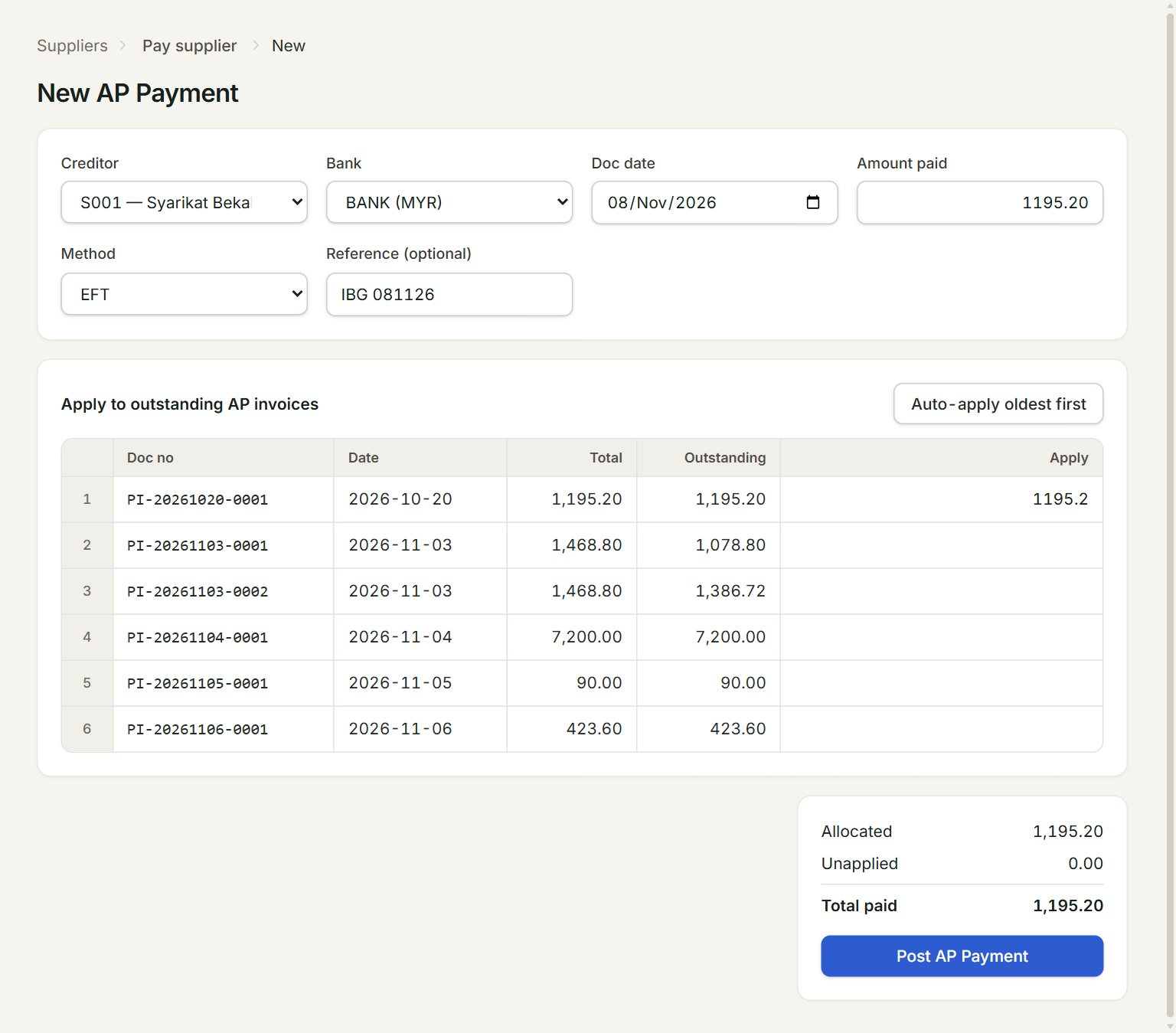
- Creditor: the supplier you paid. Their unpaid bills are listed below.
- Bank: the bank or cash account the money left from.
- Amount paid: the whole amount of the payment.
- Method: CASH, CHQ, EFT or CARD. CHQ adds a Cheque no box.
- Auto-apply oldest first: fills Apply on the oldest bills first, until the payment is used up.
- Post AP Payment: saves and posts the payment.
Pay a supplier
- In the menu, open Suppliers, then Pay supplier, and click New.
- Choose the Creditor and the Bank, and check the Doc date.
- Key the Amount paid and choose the Method. The bank's reference goes in Reference (optional).
- Click Auto-apply oldest first, or key the amount under Apply for each bill you are paying.
- Check that Unapplied is 0.00, unless you paid more than the bills.
- Click Post AP Payment.
The list
The AP Payments list shows each payment, the bank it came From, and how much is Applied to bills and Unapplied. Cash purchases appear here too, because they are paid when you post them. To correct a payment, select it and click Edit: the number stays the same and the old version is kept as void.
If something goes wrong
- Post AP Payment is grey: choose the creditor and key an Amount paid above 0.
- "No outstanding invoices for this creditor.": every bill from this supplier is paid already.
- "Allocated … > payment ….": the Apply amounts add up to more than the Amount paid. Lower them.