Stock transfers
Move stock from one of your locations to another, for example from the warehouse to the shop.
On this page
A stock transfer moves stock from one of your locations to another: from the main warehouse to the shop, say. The goods move at their average cost. How much stock you have in total, and your accounts, stay the same; only where the goods are changes.
The screen
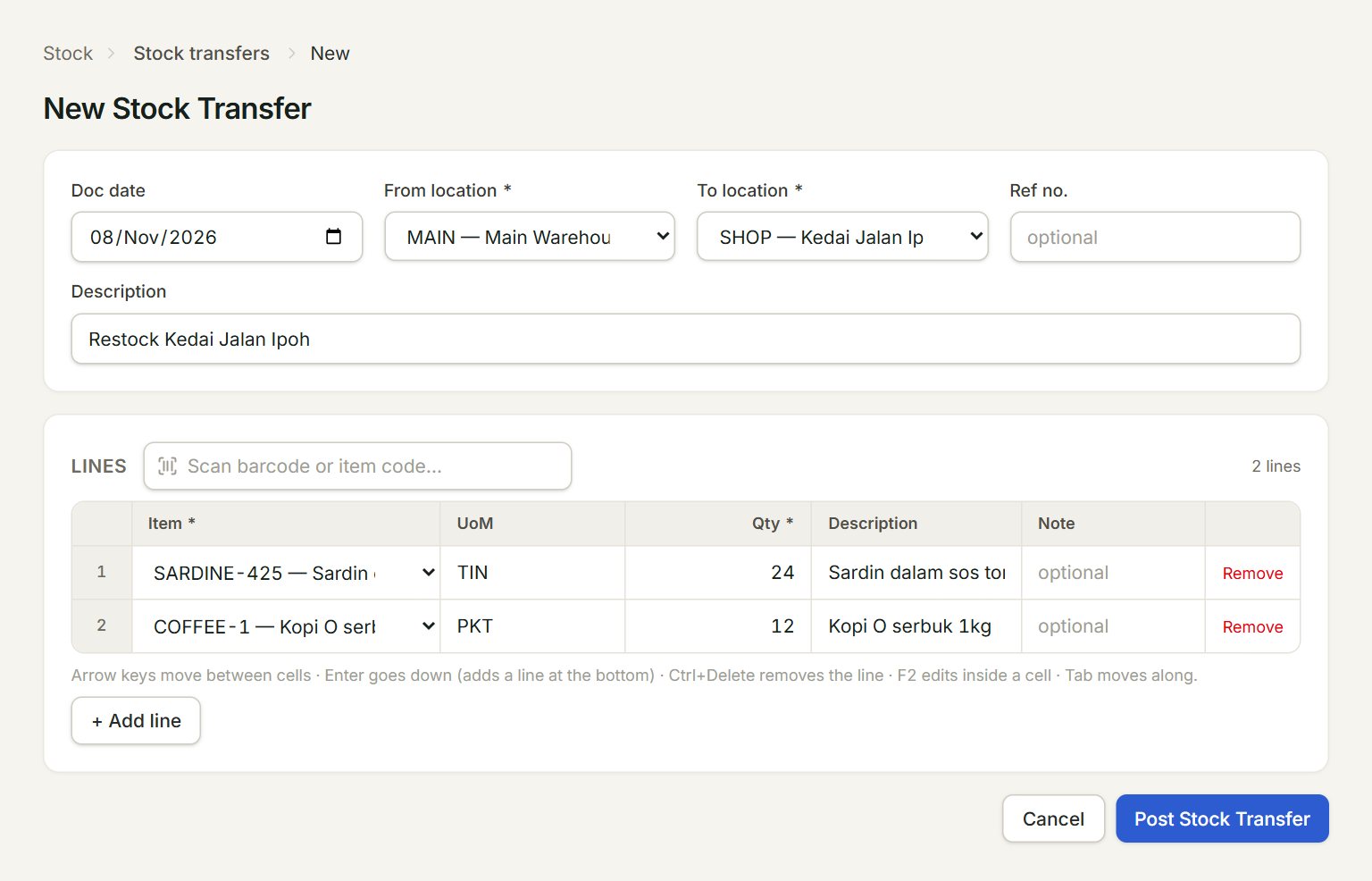
- From location: where the goods leave from.
- To location: where they go.
- Description: what the transfer is for. It shows in the list.
- Item: the item to move. Only stock items are listed.
- Qty: how many to move, in the unit under UoM.
- Post Stock Transfer: saves and posts the transfer.
Move stock
- In the menu, open Stock, then Stock transfers, and click New.
- Check the Doc date, and choose the From location and the To location.
- Type a Description, such as "Restock Kedai Jalan Ipoh".
- On each line, choose the Item and key the Qty. Scan the codes, or click + Add line for more lines.
- Click Post Stock Transfer.
The list
The Stock Transfers list shows each transfer's From and To locations, its number of Lines and the Total Cost of the goods moved. To correct one, select it, click Edit, change it and click Save Stock Transfer.
In Item inquiry, a transfer shows twice: OUT of one location and IN to the other.
If something goes wrong
- "From and To must be different locations.": choose two different locations.
- "Add at least one line with item + qty > 0.": choose an item and key a quantity on at least one line.
- To location * only offers Choose…: you have just one location. Add another in Stock locations.