Stock balance by location
How many of each stock item you have at each location, side by side.
On this page
Stock balance by location shows how many of each stock item you have at each location: one row for each item, one column for each location. Use it to see which shop or store needs stock sent over.
The screen
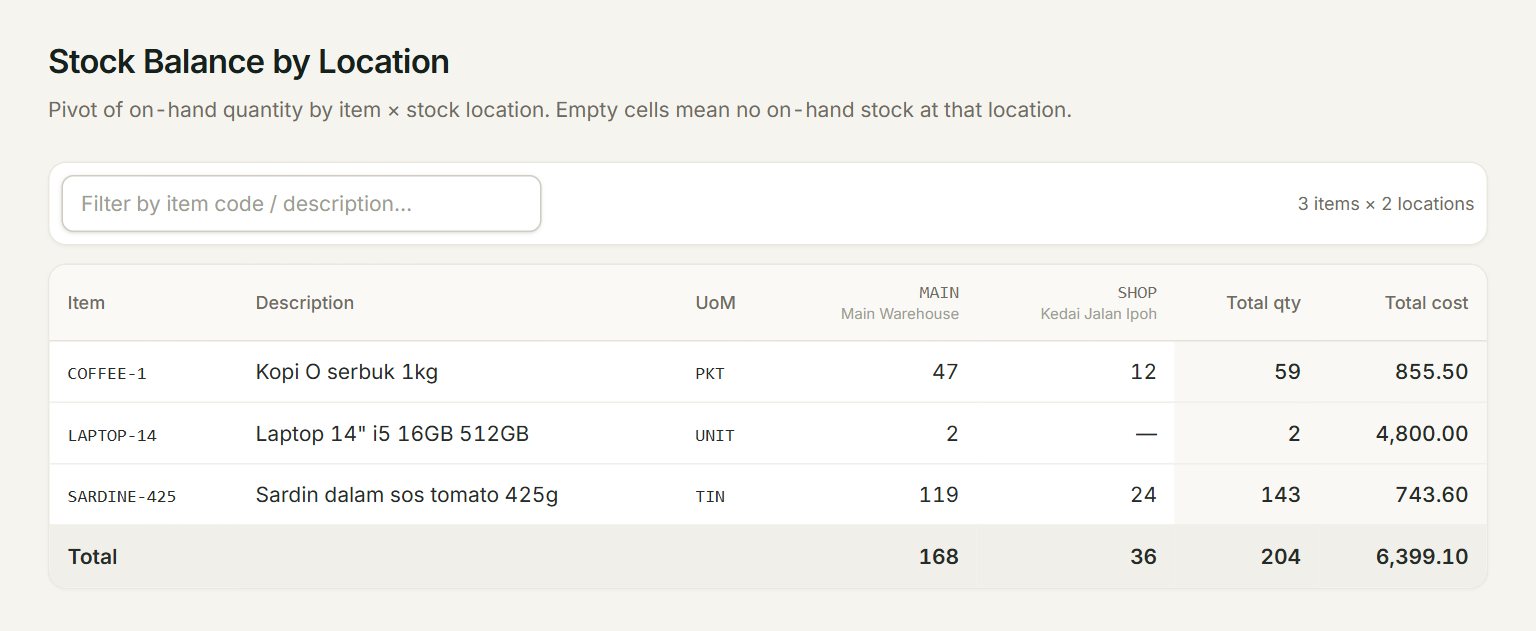
- The filter box: type part of an item code or description to show only those items.
- A location: one column for each active stock location, with its code and name.
- —: none of this item at that location. Hold the mouse over a quantity to see what it cost.
- Total qty: the item at all locations together.
- Total cost: what that stock cost you.
- Total: each location's quantities added up, and the cost of all your stock.
The quantities are as they are now, with every document posted so far. For an earlier day, use the stock card.
See where your stock is
- In the menu, open Reports, then Stock balance by location.
- Type part of an item's code or description in the filter box, for example "sardin".
- Read across the row to see how many are at each location.
- To move stock from one location to another, make a stock transfer.
If something goes wrong
- No items with on-hand balance.: no stock item has had any stock yet, or the filter matches nothing. Clear the filter box.
- A location is missing: only active locations have a column. Check it in Stock locations.