Contra
Set off what a customer owes you against what you owe them as a supplier.
Some businesses both buy from you and sell to you, so they are your debtor and your creditor at the same time. A contra sets one against the other: your invoice to them and their bill to you both go down by the same amount, and no money changes hands. The screen's title is Contras.
You need the business as a customer in Customers and as a supplier in Suppliers.
Make a contra
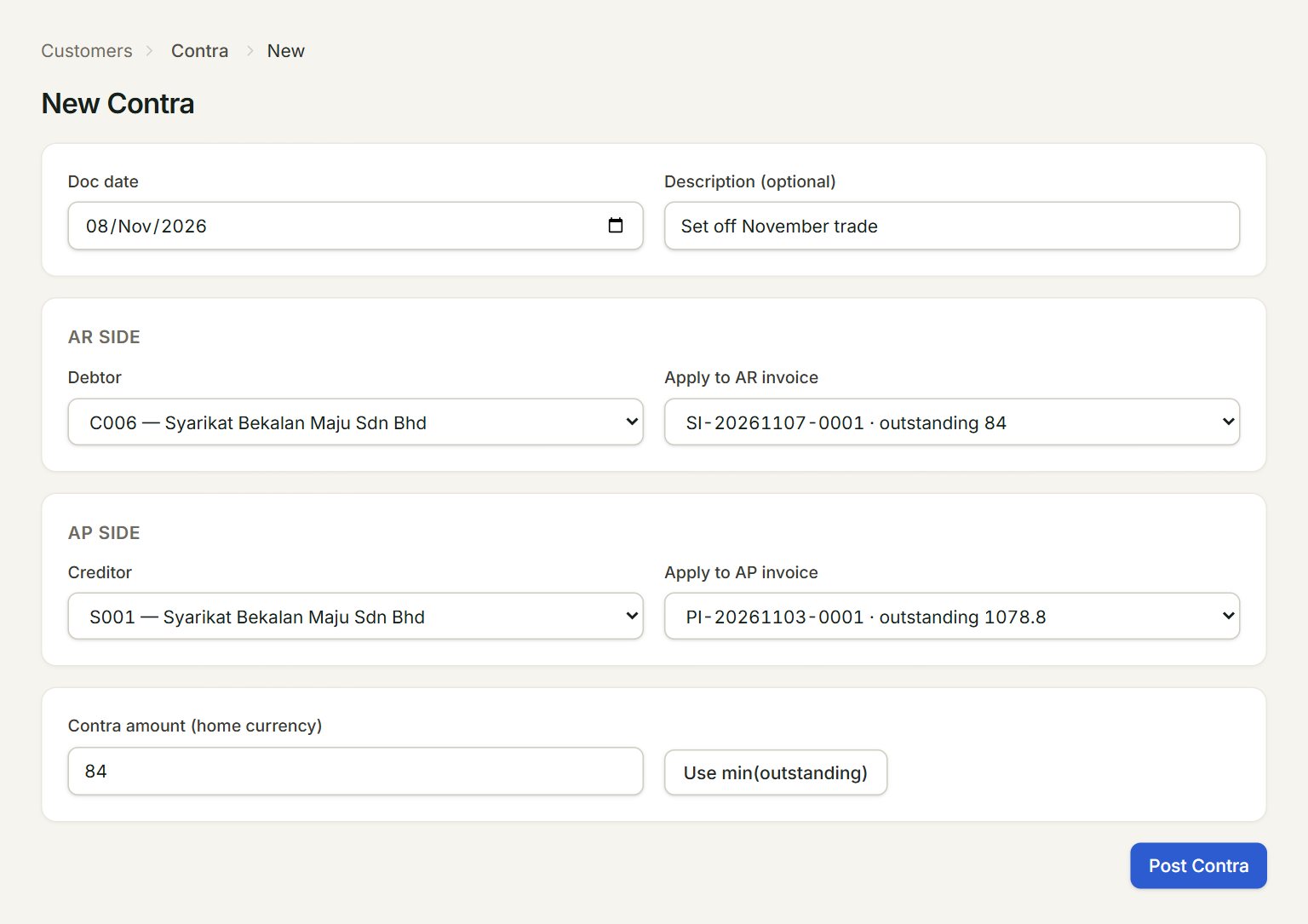
- Debtor: the business as your customer.
- Apply to AR invoice: the invoice you sent them, with what is still outstanding.
- Creditor: the same business as your supplier.
- Apply to AP invoice: their bill to you, with what you still owe.
- Use min(outstanding): fills Contra amount (home currency) with the smaller of the two outstanding amounts.
- Post Contra: posts the contra.
- In the menu, open Customers, then Contra, and click New.
- Check the Doc date and key a Description (optional).
- Under AR side, choose the Debtor and the invoice in Apply to AR invoice.
- Under AP side, choose the Creditor and the bill in Apply to AP invoice.
- Click Use min(outstanding), or key the Contra amount (home currency).
- Click Post Contra, then Preview or Print it to send to the business.
Both invoices show the contra as paid: see Customer invoices and Supplier invoices. The Contras list keeps each one with its amount and description.
If something goes wrong
- Post Contra is grey: choose both the debtor and the creditor, and key an amount above 0.
- "Contra amount … exceeds AR invoice outstanding …." (or AP invoice): the amount is more than is left on one of the two. Click Use min(outstanding).
- "Contra against a foreign-currency invoice is not supported in v1…": both invoices must be in your own currency (MYR).