Items
The goods and services you buy and sell, with their units, prices, and whether eaasycount keeps count of them.
On this page
Items lists the goods and services you buy and sell. Each has a code that you type or scan on documents. For a stock item, eaasycount counts how many you have in each location and what they cost you.
The screen
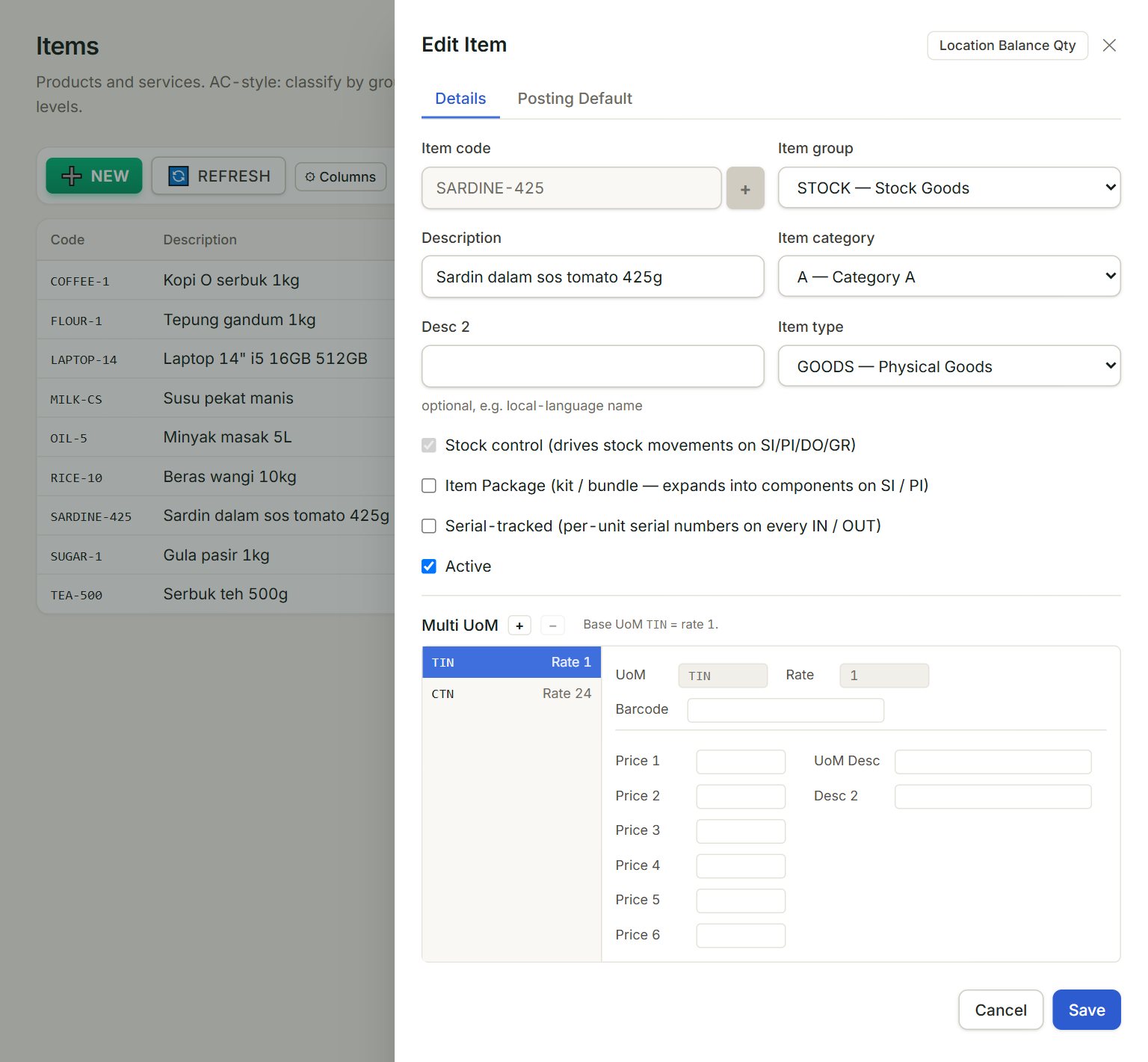
- Item code: the code you type or scan. On a new item, + fills in the next free one.
- Stock control: tick it for goods you keep in stock. It cannot be changed once saved.
- Serial-tracked: for goods with a number on each unit, such as laptops. Every unit in or out then needs its serial number.
- Multi UoM: the units you buy and sell in. The base unit is rate 1; + adds another, such as CTN at 24. Click a unit for its Barcode and Price 1 to Price 6.
- Location Balance Qty: how many are on hand in each location.
- Posting Default: the sales account, the purchase account and the tax code that fill in on documents.
Add an item
- In the menu, open Stock, then Items, and click NEW.
- Type the Item code, or click +. Type the Description.
- Key the Base UoM, such as TIN or PKT, and the Base price you sell one at.
- For goods you keep in stock, tick Stock control and choose the Costing method: most shops use Weighted average.
- Check the accounts on the Posting Default tab, then click Save.
- To buy or sell in other units, open the item again and click + next to Multi UoM.
Stock or not
Leave Stock control unticked for services and things you do not count, such as delivery charges: they go straight to the purchase or expense account. A stock item goes into stock when you buy it, and out at cost when you sell it.
A serial-tracked item gets a Serial numbers tab. Batch numbers are not set on the item: type them in the Batch column of a purchase invoice or a stock adjustment.
If something goes wrong
- "Item code is required." or "Description is required.": fill in both, then click Save.
- The Stock control box is grey: it cannot change after the item is saved. To count an item you saved without it, add it again under a new code.
- An item is missing from documents: it is inactive. Tick Show inactive, open it, tick Active and click Save.