Payroll runs
Pay everyone for one month. Calculate, check, approve; approving posts the wages to your books.
On this page
A payroll run pays your employees for one month. You calculate it, check it, then approve it. Approving locks the figures and posts the wages to your books.
The list
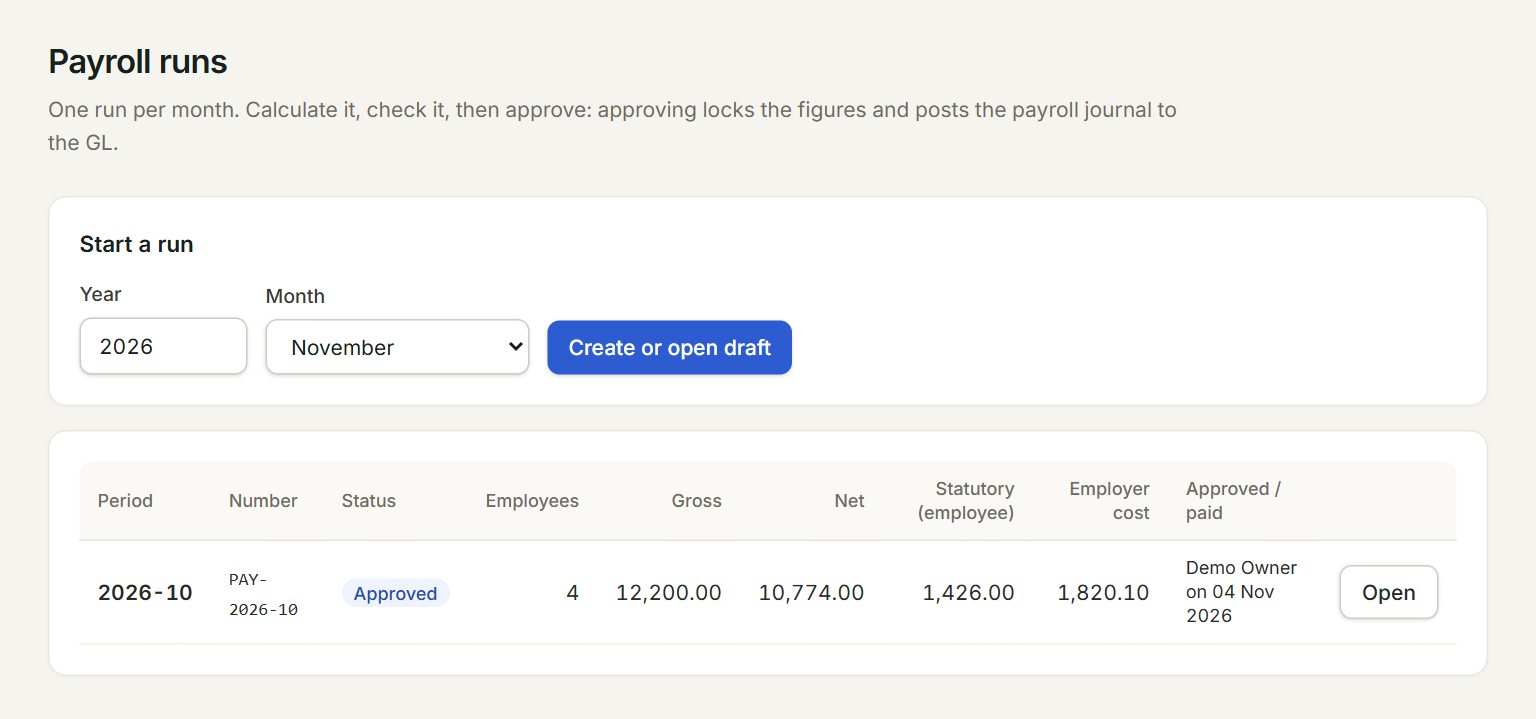
- Year: the year of the run.
- Month: the month you are paying.
- Create or open draft: makes the month's draft run, or opens it if it is there already.
- A row: one month. Double-click it to open the run.
- The status: Draft, Approved, Paid or Voided.
- Open: opens the run.
How a run moves along
- Draft: change anything. Calculate works every line out again, as often as you like.
- Approved: the figures are locked for good, and one payroll journal is posted, dated the last day of the month: the wages as expenses, and what you owe the staff, KWSP, PERKESO and LHDN as payables. The statutory files unlock.
- Paid: you mark it once the salaries are paid. Nothing is posted: key the payment in Cash book.
The run
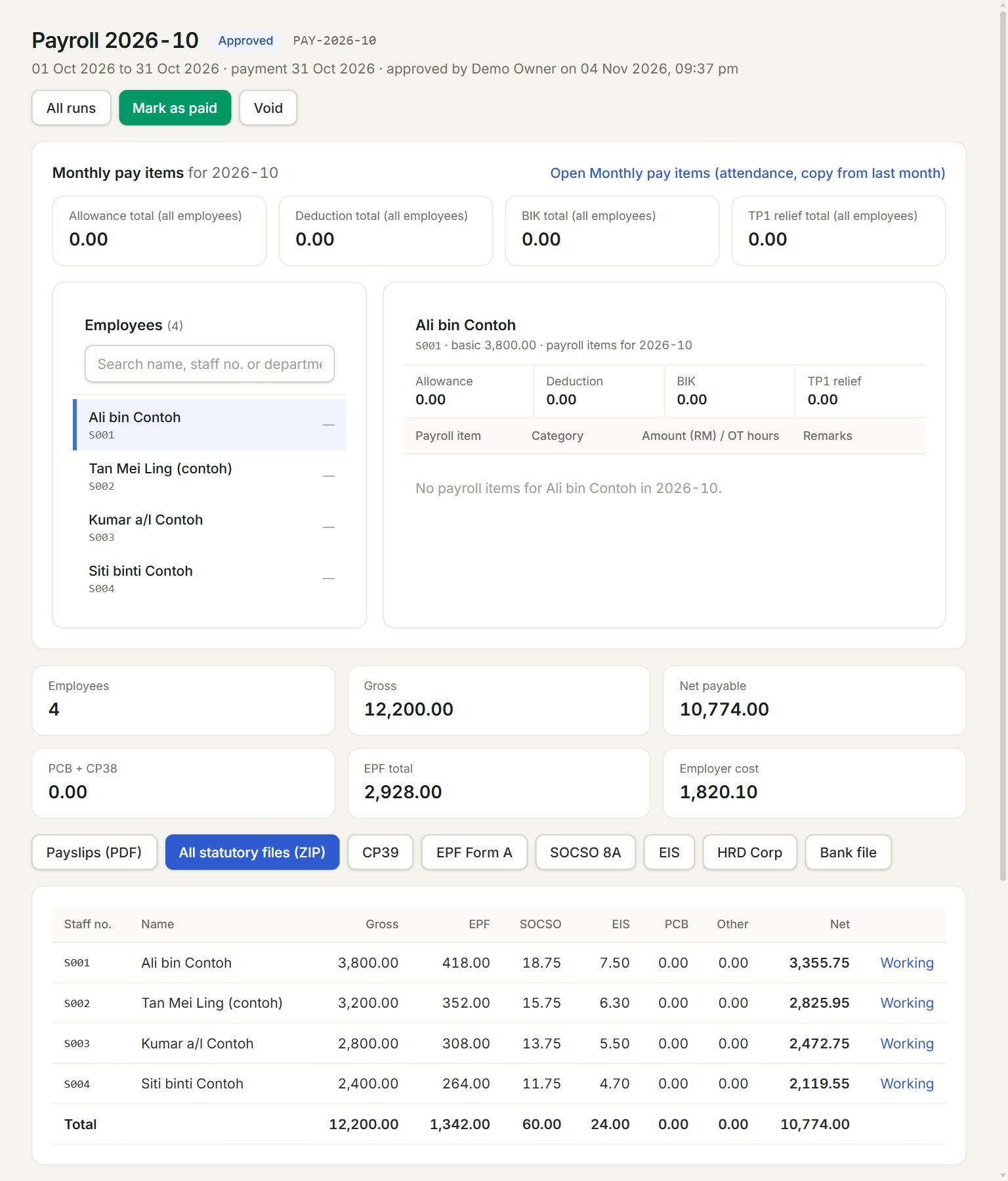
- The status, the run's number, the dates and who approved it.
- Mark as paid and Void. A draft has Calculate, Approve and Delete here instead.
- Monthly pay items: the month's overtime, commission and claims.
- Payslips (PDF): every employee's payslip. A draft's payslips are marked DRAFT.
- All statutory files (ZIP), or one at a time: CP39, EPF Form A, SOCSO 8A, EIS, HRD Corp and the Bank file.
- Working: how the line was worked out, PCB included.
Run a month
- In the menu, open Payroll, then Payroll runs.
- Choose the Year and Month and click Create or open draft.
- Check the overtime, commission and claims under Monthly pay items at the top of the run.
- Click Calculate. Read any compliance warnings and check the lines.
- Click Approve, then Approve and post.
- Once the salaries are paid, click Mark as paid.
A payroll admin prepares the run; an approver (or admin) approves it. To take back an approved run, click Void and type the reason: its journal is voided, it drops out of every file and form, and you can run the month again.
If something goes wrong
- Approval will be refused until the payroll GL accounts are set in Payroll settings: choose the accounts in Payroll settings.
- Monthly pay items changed since this run was last calculated.: click Calculate again, then approve.
- Payroll for … is already Approved and cannot be recalculated: that month is done. Put the change in a later month.