Find your way round
The menu on the left, the tabs across the top, and Find a screen to jump anywhere.
On this page
Every screen in eaasycount sits in the menu on the left. Each screen you open becomes a tab, so you can keep an invoice half-done while you look something up.
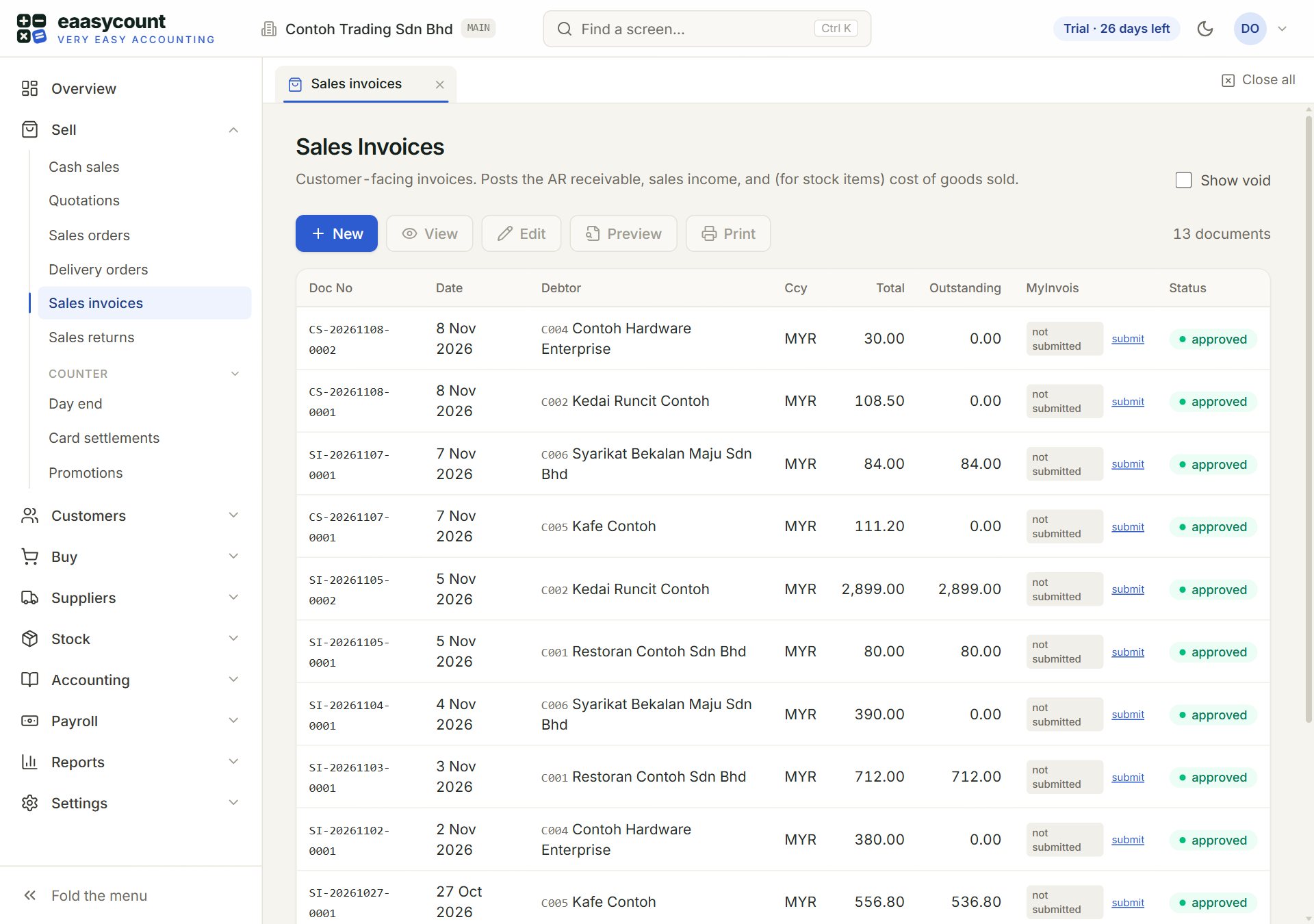
- The menu: click a heading such as Sell to open it, then click a screen.
- The screen you are on is marked in the menu, and has a tab across the top.
- Find a screen: type part of a name, for example "aged" or "invoice", and press Enter. Ctrl K opens it from anywhere.
- Close all: closes every tab except the pinned ones. Each tab has its own × too.
- Your account: your name and role, and Sign out.
- Fold the menu: gives the screen more room. Click it again to bring the menu back.
Open a screen
- Click a heading in the menu, for example Customers.
- Click the screen, for example Receive payment. It opens in a new tab.
- To go back to a screen you had open, click its tab.
Or press Ctrl K, type a few letters of the screen's name and press Enter. Shortcuts work too: "aged ar" finds Aged receivables, "pv" finds Cash book.
Keep a tab open
Click the pin on a tab to keep it: Close all leaves pinned tabs alone. Use it for the screens you use all day, such as Sales invoices.
Light or dark
The moon button at the top right switches between light and dark screens. eaasycount remembers your choice on this computer.