Sales orders
Record what a customer has ordered, then deliver it and bill it without keying it again.
On this page
A sales order records what a customer has ordered from you. It does not touch your books or your stock. When the goods go out, you transfer it to a delivery order; when you bill, to a sales invoice.
Make a sales order
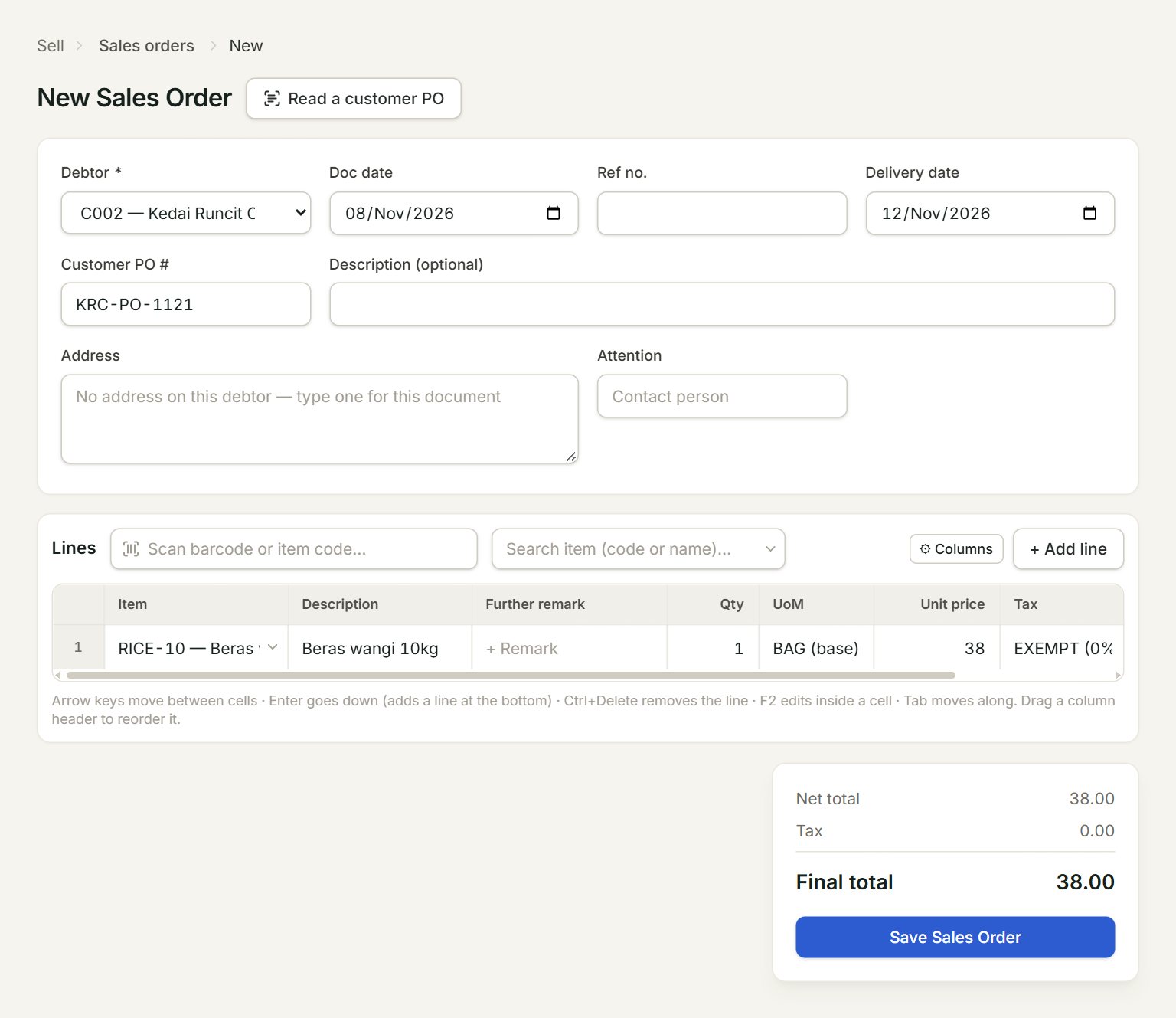
- Read a customer PO: reads the customer's purchase order from a photo or a PDF and fills the order for you to check.
- Debtor: the customer. Their address fills in below.
- Delivery date: when the customer wants the goods.
- Customer PO #: the number on the customer's purchase order.
- Scan a barcode or type an item code here and press Enter: the line is added.
- Save Sales Order: saves the order.
- In the menu, open Sell, then Sales orders, and click New.
- Choose the Debtor. Key the Customer PO # and the Delivery date.
- Add the lines: scan or type each item code, or click + Add line. Check the Qty, Unit price and Tax.
- Click Save Sales Order, then Preview or Print to send a copy, or Close (Esc).
Deliver it or bill it
In the Sales Orders list, select the order and click Edit, then Transfer →. Choose Delivery Order when the goods go out, or Sales Invoice to bill straight away. You can transfer part of an order: the rest stays open, and the order shows partial until it is all done. The steps are the same as for quotations.
To see every order with something still to deliver, run Outstanding sales orders.
If something goes wrong
- Save Sales Order is grey: choose the debtor first.
- "Add at least one line.": give a line a description and a quantity.
- "This customer's PO … is already on sales order … (…). Save it again?": you have taken this PO before. Click Cancel unless it really is a new order.