Mail log
Every email eaasycount tried to send, whether it went, and why not when it failed.
On this page
The Mail log lists every email eaasycount tried to send for this company, newest first: documents, statements and test emails. When an email fails, the reason is in the Error column.
The screen
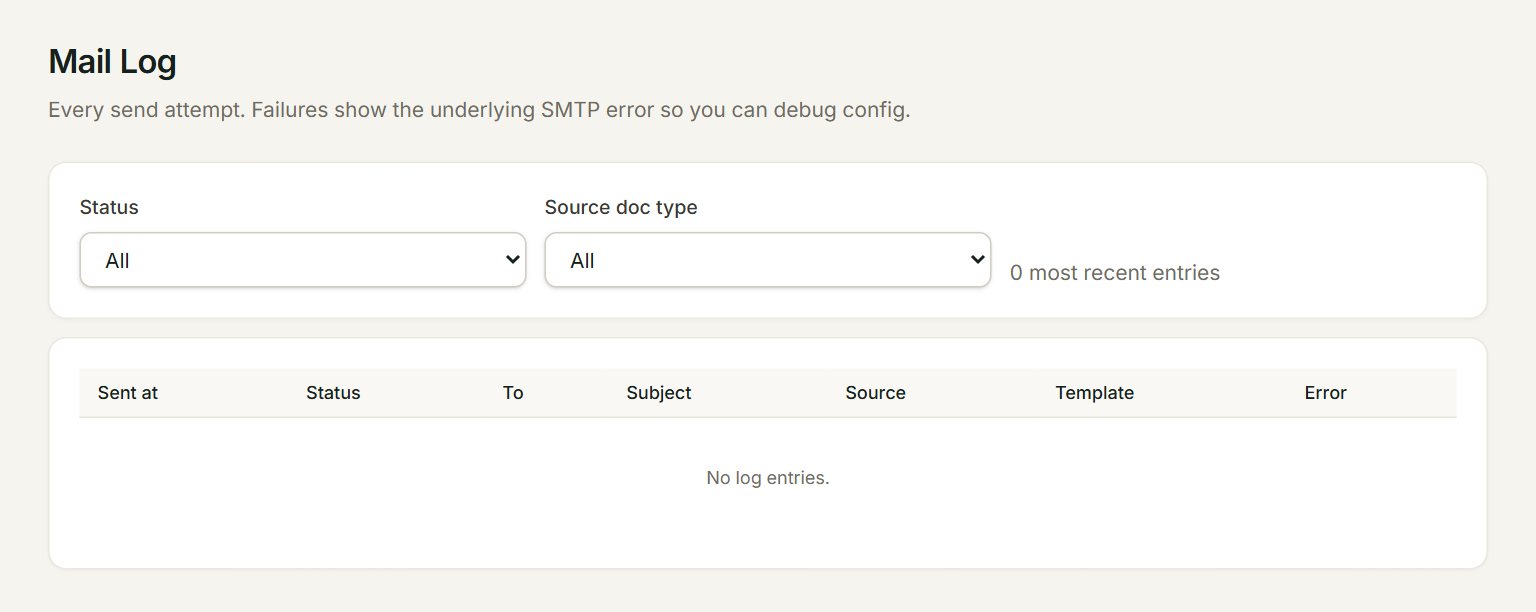
- Status: show only Sent or only Failed emails.
- Source doc type: show one kind only, for example Sales Invoice, Statement or SMTP test.
- Status of each email: sent or failed.
- To: who the email was for. Subject is next to it.
- Error: why a failed email did not go.
Check that an email went
- In the menu, open Settings, then Mail log.
- Find the email by its To and Subject. The newest is at the top, with its time under Sent at.
- sent means your email provider took it. If the customer cannot find it, ask them to look in their spam folder.
- failed: read the Error, put it right in Mail gateway, then email the document again.
The list shows the 200 most recent emails. Choose a Status or a Source doc type to find an older one.
If something goes wrong
- Email gateway is not enabled. Configure SMTP under Settings → Mail.: in Mail gateway, tick Email gateway enabled and click Save settings.
- SMTP host / port / from-email is missing.: fill them in Mail gateway and click Save settings.
- An error from your mail server about the user name or password: in Mail gateway, choose Set new under Password and type it again. Gmail needs an app password.