Companies
The companies in your subscription. Each one keeps its own books.
On this page
Companies lists every company in your subscription. Each company is its own set of books: its own invoices, accounts and reports. Use it when you keep the books of more than one business, for example a Sdn Bhd and an enterprise.
The list
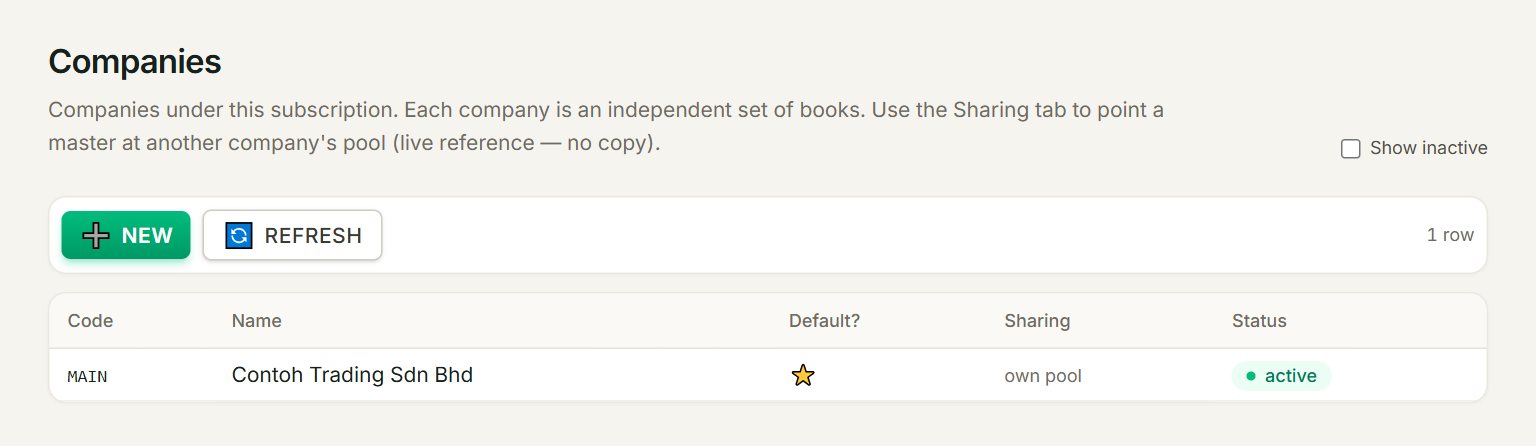
- NEW: adds a company.
- A row: click it to change the company's name, or set it as the default.
- Default?: the ⭐ company is the one that opens after you sign in.
- Sharing: own pool when the company keeps its own customers, items and accounts.
- Show inactive: lists the companies you have switched off too.
Add a company
- In the menu, open Settings, then Companies, and click NEW.
- Type a short Code, for example SDN or HQ, and the company's Name.
- Click Save.
- Sign out and back in, and pick the company to open. To switch later, click the company name at the top of the window.
The code cannot be changed after you save. At first only you can open the new company: tick it for the others in Access rights. Then fill in its Company profile.
Share lists between companies
Open a company and click the 🔗 Sharing tab. For each list, such as Chart of Accounts, Debtor (Customers) or Item + UoM + Serials, choose another company to use that company's list instead of its own. Leave it at — own pool — to keep the company separate. A change takes effect the next time a screen loads.
If something goes wrong
- Your free trial includes 1 company. To add more, contact Threecom at …: your plan sets how many companies you can have. Contact Threecom at the address shown.
- Company code '…' already exists in this subscription.: choose another code.
- You have no other companies to share with yet.: add a second company first.