Void instead of delete
Why a posted document has no Delete, and how to change it or take it back instead.
On this page
A posted invoice, receipt or journal has already moved your accounts, so eaasycount never deletes it. To correct one, you edit it. To cancel one, you void it or reverse it with another document. The old version stays, marked void, and everything it posted is reversed. Your audit trail stays complete.
Change a posted document
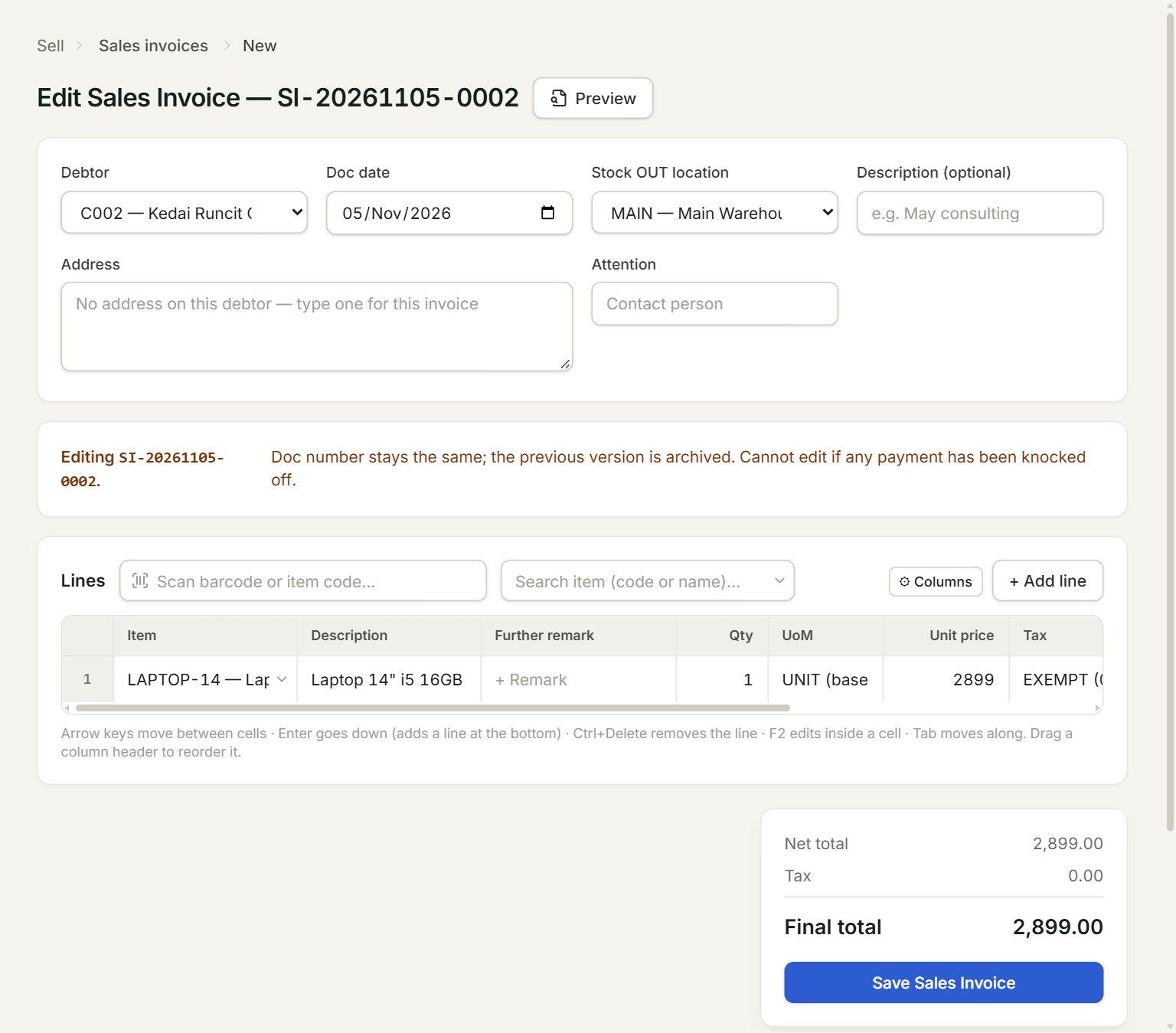
- The document you are changing, with its number.
- The note: the number stays the same, and the old version is kept as void.
- Save Sales Invoice: posts the new version and voids the old one.
- Open the document's list, for example Sell, then Sales invoices.
- Click the document to select it, then click Edit.
- Change what is wrong, then click the save button at the bottom.
This works for sales and purchase invoices, receipts, supplier payments, journal entries and cash book entries. Lists hide void documents: tick Show void above a list to see them.
Take a document back
- A sales invoice: give a customer credit note, or a sales return when goods come back.
- A purchase invoice: a supplier credit note, or a purchase return.
- A cash book entry: select it in Cash book, click Edit, then click Void.
- A cash sale: select the bill and click Cancel bill. Only an admin can.
If something goes wrong
- Cannot void — … has been knocked off via payments. Void the payments first.: a receipt pays this invoice. Edit the receipt in Receive payment so it no longer pays it, then try again.
- Cannot post this document dated …: … is closed for this company: the document is in a closed month. See When a save is refused.