Receive payment
Record money a customer pays you, and knock it off the invoices it pays.
On this page
When a customer pays you, record it here and choose which invoices the money pays: the knock-off. The money goes into your bank or cash account, and the customer owes less. The screen's title is AR Payments.
Receive a payment
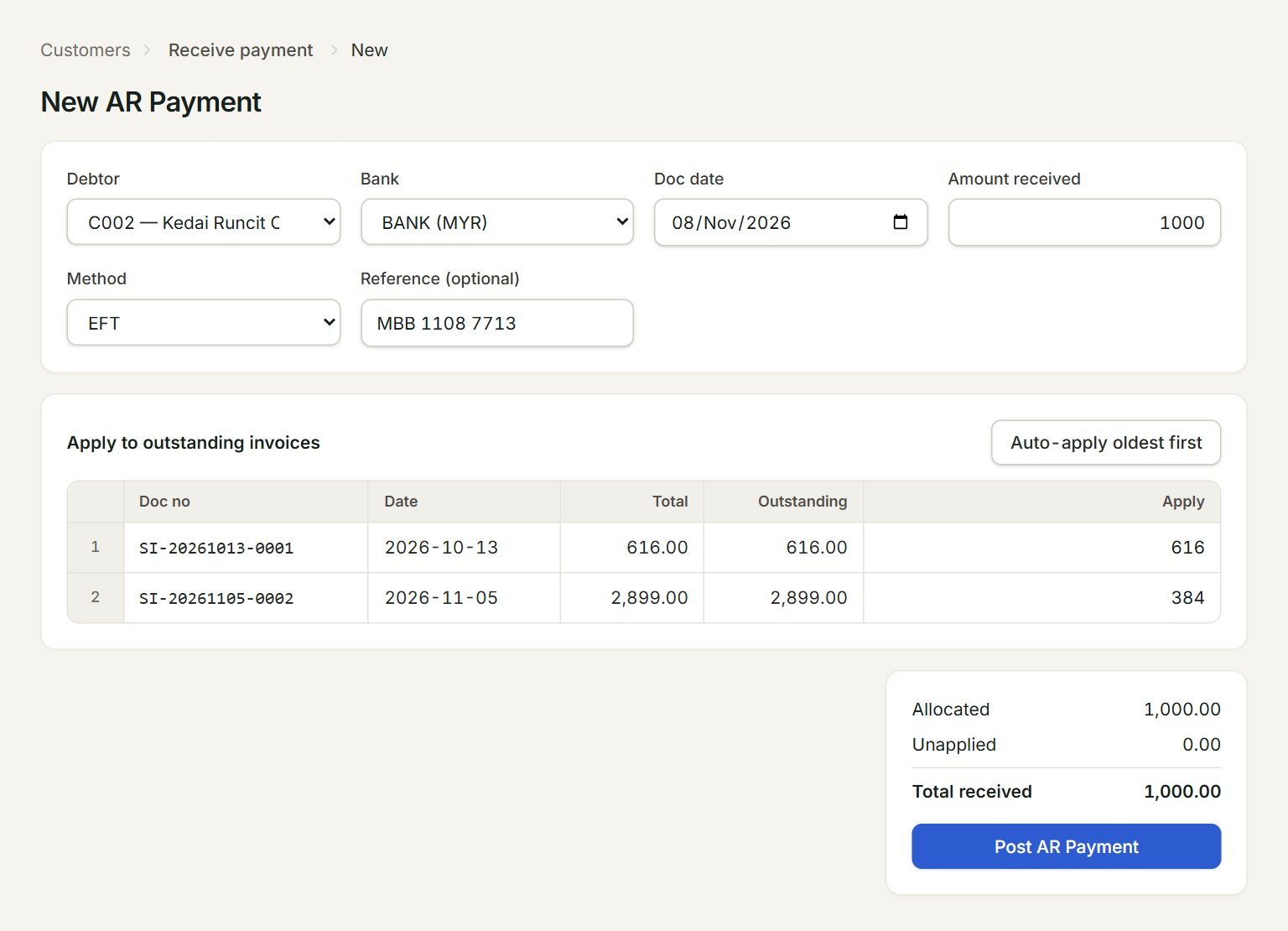
- Debtor: the customer who paid. Their unpaid invoices are listed below.
- Amount received: the whole amount paid.
- Method: CASH, CHQ (cheque), EFT (bank transfer) or CARD. With CHQ, a Cheque no box appears.
- Auto-apply oldest first: spreads the amount over the invoices, oldest first.
- Apply: how much goes to each invoice. Type over it to choose yourself.
- Post AR Payment: posts the payment and knocks off the invoices.
- In the menu, open Customers, then Receive payment, and click New.
- Choose the Debtor, the Bank the money went into, and the Doc date.
- Key the Amount received and choose the Method. Key the bank's reference in Reference (optional).
- Click Auto-apply oldest first, or key an amount in Apply for each invoice the customer is paying.
- Check Allocated and Unapplied at the bottom, then click Post AR Payment.
- Click Preview or Print for the customer's receipt, or Close (Esc).
Money left over
What you do not apply is kept as Unapplied: credit on the customer, such as a deposit for a coming order.
The list
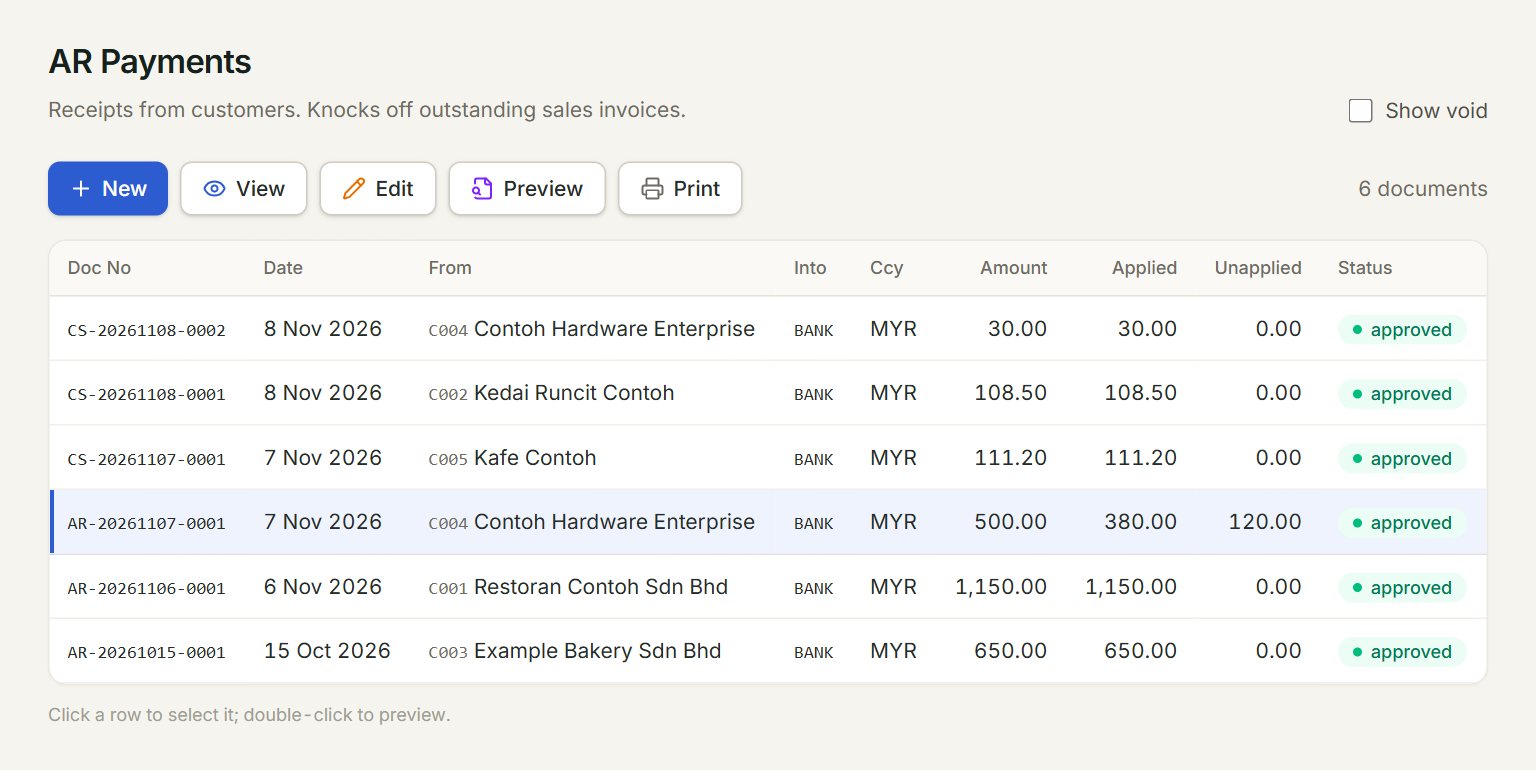
- New: records a payment.
- A payment: click to select it, double-click to preview the receipt.
- Edit: changes it. The number stays; the old version is kept as void.
- Applied: what went to invoices.
- Unapplied: what is left as credit.
- Show void: lists the voided versions too.
Bills paid at the counter show here too, under their CS numbers, already paid in full.
If something goes wrong
- Post AR Payment is grey: choose the debtor and key the Amount received.
- "Allocated … > payment ….": the Apply amounts add up to more than the amount received. Lower them.
- "No outstanding invoices for this debtor.": the customer owes nothing. If you post, all the money is kept as unapplied.