Payroll settings
Your employer numbers for KWSP, PERKESO, LHDN and HRD Corp, the salary bank, and the accounts payroll posts to.
On this page
Payroll settings holds your employer numbers for KWSP, PERKESO, LHDN and HRD Corp, the bank you pay salaries from, and the accounts the payroll journal posts to. Set it up before your first payroll run.
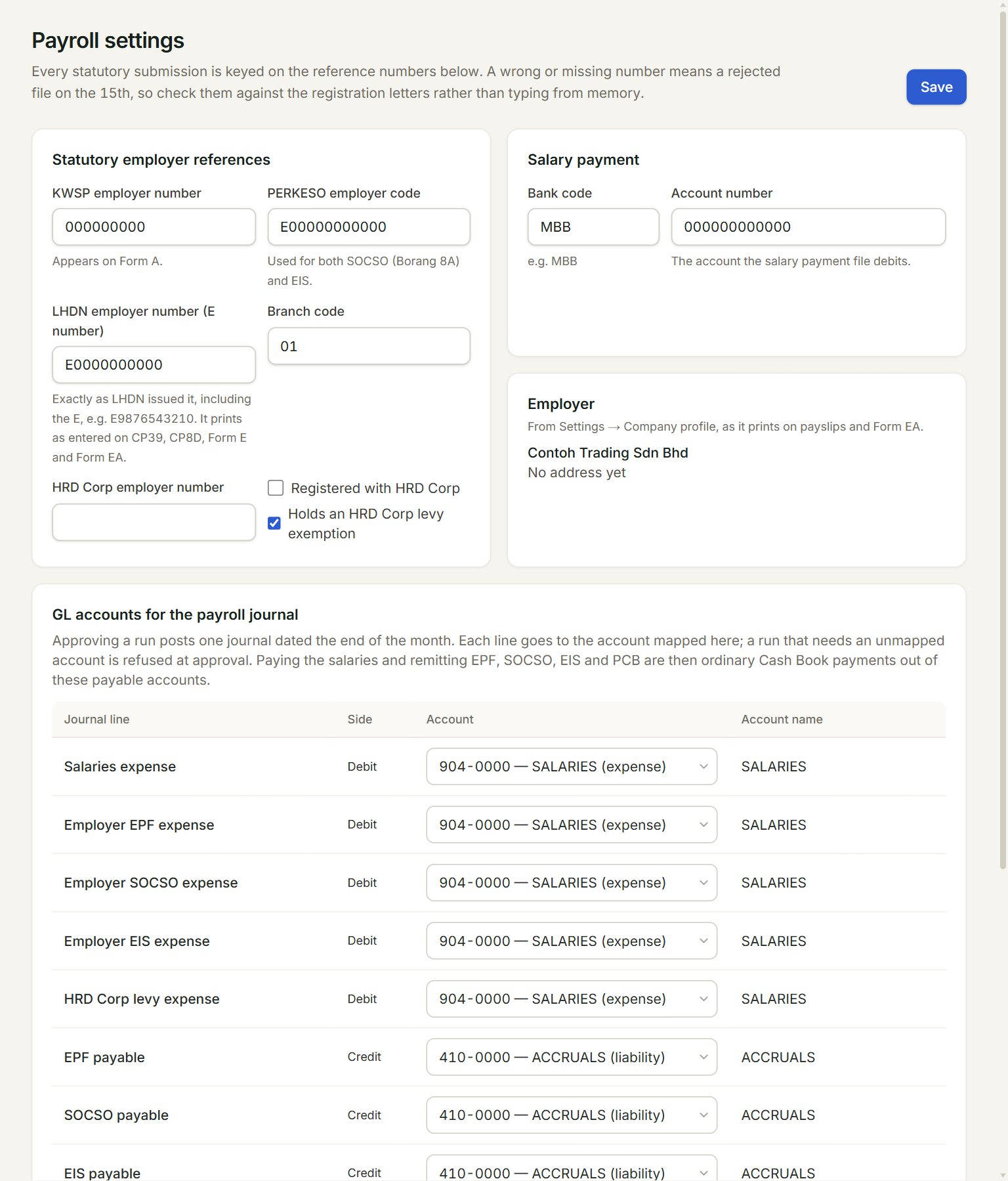
- KWSP employer number: printed on EPF Form A.
- PERKESO employer code: used for SOCSO (Borang 8A) and EIS.
- LHDN employer number (E number): exactly as LHDN issued it, with the E. It prints on CP39, CP8D, Form E and Form EA.
- Salary payment: the bank account the salary payment file is paid from.
- GL accounts for the payroll journal: the account each line of the payroll journal posts to.
- Save: saves the settings.
Set up payroll
- In the menu, open Payroll, then Payroll settings (under Setup).
- Key the numbers under Statutory employer references, from your registration letters.
- Tick Registered with HRD Corp if your company is registered.
- Key the Bank code and Account number under Salary payment.
- Choose an Account for every Journal line.
- Click Save.
The payroll journal
Approving a payroll run posts one journal, dated the last day of the month. The debits are the expenses: salaries, and the employer's EPF, SOCSO, EIS and HRD levy. The credits are what you now owe: EPF, SOCSO, EIS, PCB, the levy, zakat, other deductions and the net salaries. When you pay the staff, KWSP, PERKESO and LHDN, key ordinary payments in Cash book out of these payable accounts.
The employer's name and address come from Company profile. They print on payslips and Form EA.
If something goes wrong
- Not mapped yet: …: choose an account for each line listed. A run that needs one is refused at approval.
- not in this company's chart: that account is not in your chart of accounts. Choose another.
- Read only: changing payroll settings needs the payroll admin role.: ask your account's admin for the role in Users.