Delivery orders
The note that goes with the goods. Bill it later by turning it into a sales invoice.
On this page
A delivery order (DO) goes out with the goods and records what the customer received. It is not a bill: when you are ready to charge, transfer it to a sales invoice.
Make a delivery order
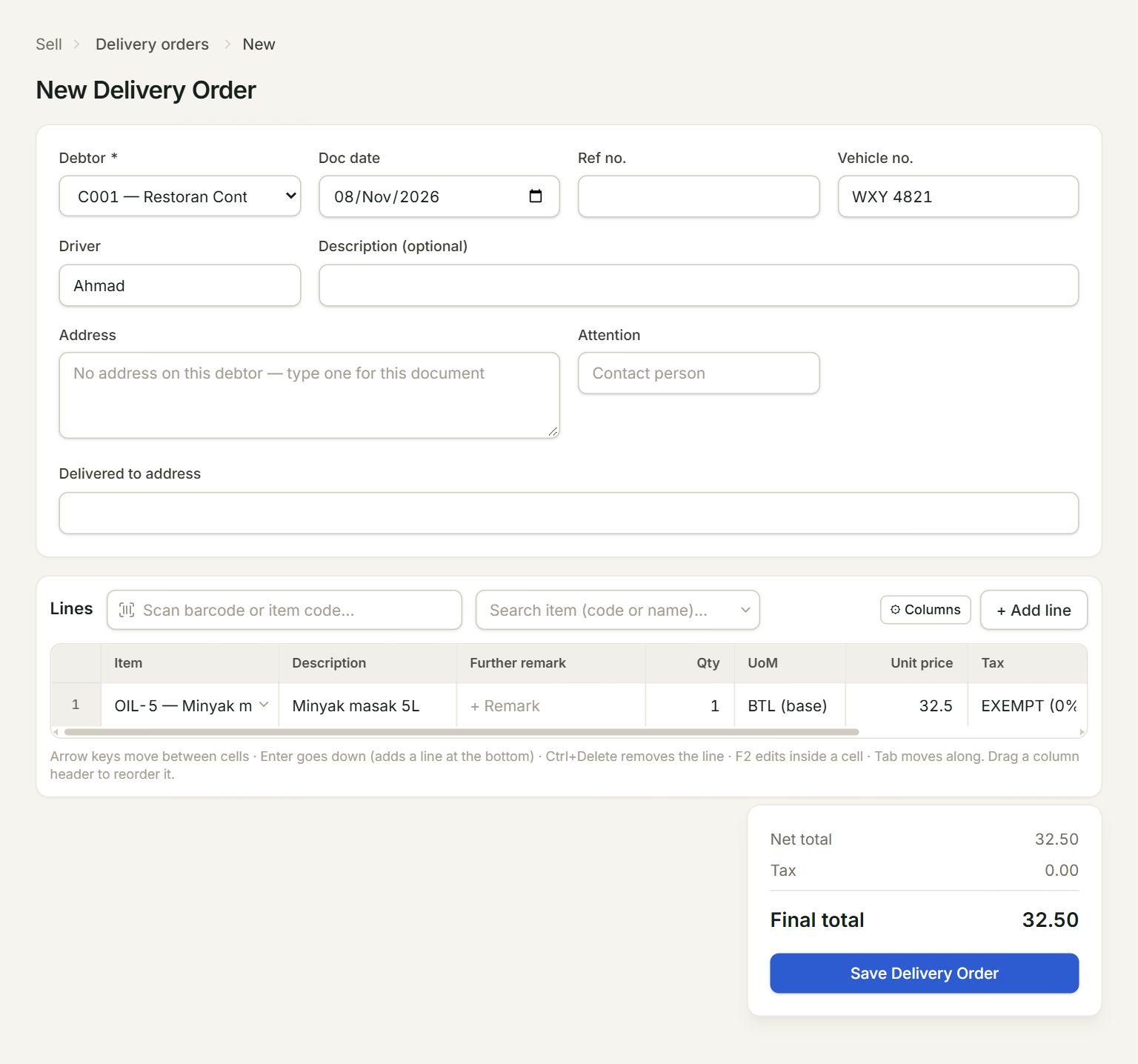
- Debtor: the customer. Their address fills in below.
- Vehicle no.: the lorry or van that delivers.
- Driver: who delivers.
- Delivered to address: where the goods go, when it is not the customer's own address.
- Scan a barcode or type an item code here and press Enter: the line is added.
- Save Delivery Order: saves it.
- In the menu, open Sell, then Delivery orders, and click New.
- Choose the Debtor and check the Doc date.
- Key the Vehicle no. and the Driver, and the Delivered to address if it is different.
- Add the lines: scan or type each item code, or click + Add line, and check the Qty.
- Click Save Delivery Order, then Print it to go with the goods.
To deliver what is on a sales order, open the order and use Transfer → instead: the lines come across and nothing is keyed twice.
Bill it
In the Delivery Orders list, select the delivery order and click Edit, then Transfer →, and click Transfer. A sales invoice is posted for what you delivered. Or start from the invoice: in Sales invoices, click Transfer from… and tick the delivery order's lines.
If something goes wrong
- Save Delivery Order is grey: choose the debtor first.
- "… is serialized — click 🔢 Serials and pick … on-hand serial(s) before saving.": click the 🔢 button in that line's Serials column and pick one serial number for each unit.
- "Fully transferred." and nothing can be changed: it is billed already. Change the sales invoice instead.