Item groups, types and categories
Three short lists for sorting your items: by group, by type and by category.
On this page
Item groups, Item types and Item categories are three short lists for sorting your items. For example: group STOCK for goods you sell, type SERVICE for work you charge for, category A for your best sellers. You choose one of each on an item's Details tab. All three are optional.
The three screens work the same way. This guide shows Item groups.
The screen
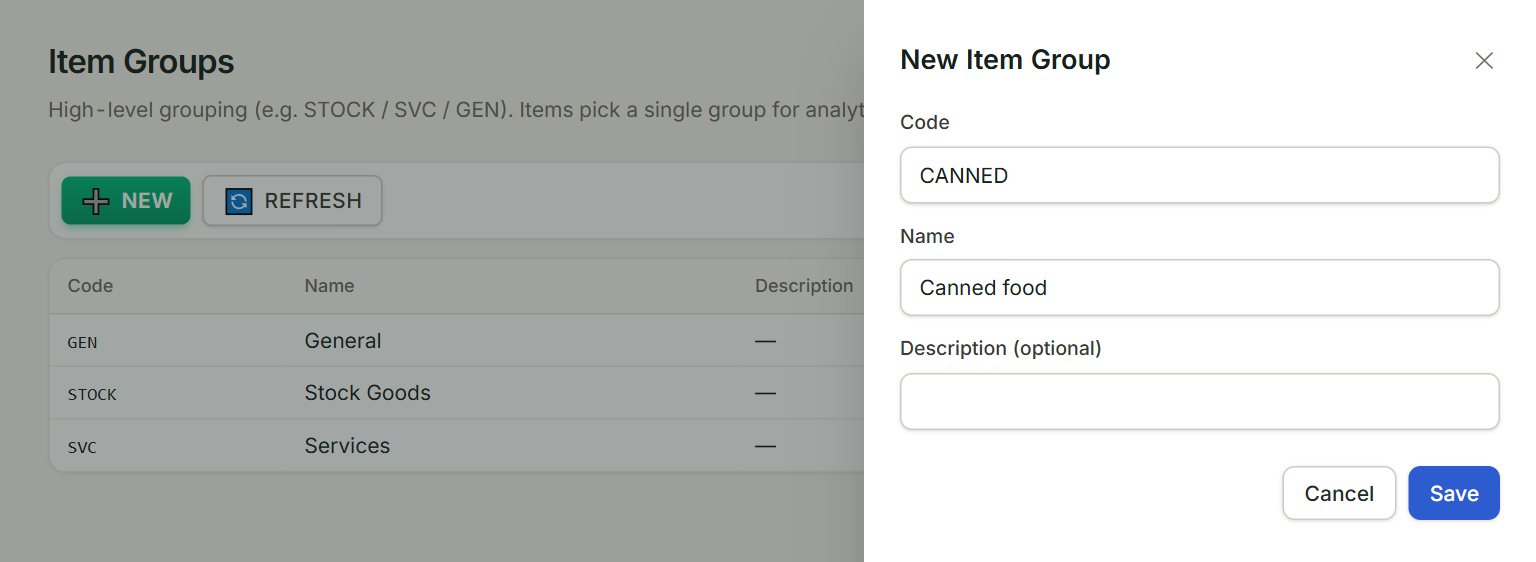
- NEW: adds an entry to the list.
- A row: click it to change that entry.
- Code: a short code in capitals, such as STOCK. It cannot be changed once saved.
- Name: the name shown next to the code, such as Stock Goods.
- Description (optional): a note on what belongs here.
- Save: saves the entry.
Add a group, type or category
- In the menu, open Stock. Under Setup, click Item groups, Item types or Item categories.
- Click NEW.
- Type the Code and the Name.
- Click Save.
- Open each item in Items, choose it in Item group, Item type or Item category, and click Save.
To see them in the Items list, click ⚙ Columns there and tick Group, Type or Category.
Stop using one
Click its row, untick Active and click Save. It is no longer offered on items; tick Show inactive to see it again.
If something goes wrong
- "Code is required." or "Name is required.": fill in both, then click Save.
- A group is missing from an item's Item group list: it is inactive. Tick Show inactive, open it and tick Active.