Access rights
Choose which companies each user can open.
On this page
Access rights decides which companies each person can open. The screen is called Access Matrix: one row per user, one column per company, and a tick where that user may work. Only an admin can open it.
The screen
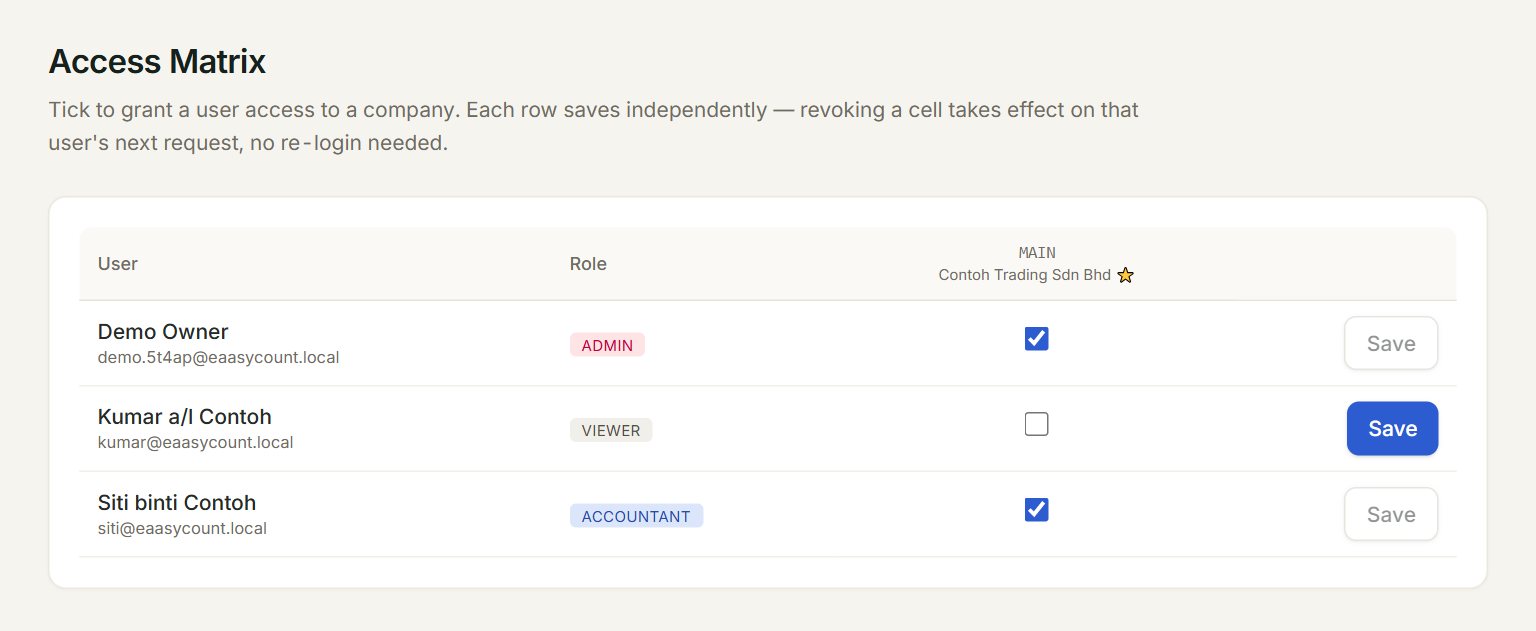
- A user: their name and email.
- Their role, set in Users.
- A company: its code and name. The ⭐ one is the default company.
- The tick: ticked, the user can open that company.
- Save: saves that user's row. It is grey until the row has a change.
Give or take away a company
- In the menu, open Settings, then Access rights.
- Find the user's row.
- Tick a company to let them in, or untick it to keep them out.
- Click Save on that row.
- A green note says Access updated for and the user's name.
Taking a company away works on the user's very next click. A company you give them shows once they sign in again. Each row saves on its own, so save one row before you change the next.
What the role does
The tick says which companies a user can open. Their role says what they can do there: admin everything, accountant post and edit, viewer look only. Change the role in Users. Payroll has its own access, set under Payroll access in Users.
If something goes wrong
- Admin role required.: only an admin can see this screen. Ask an admin to make the change.
- Save is grey: nothing on that row has changed yet.
- A user cannot see a company: tick that company on their row, click Save, and ask them to sign out and in again.