Supplier statements
Your account with one supplier, bill by bill, to check against the statement they send you.
On this page
A supplier statement shows your account with one creditor (supplier) for a period: every bill, payment and credit note, and what you still owe. Check it against the statement the supplier sends before you pay.
The screen
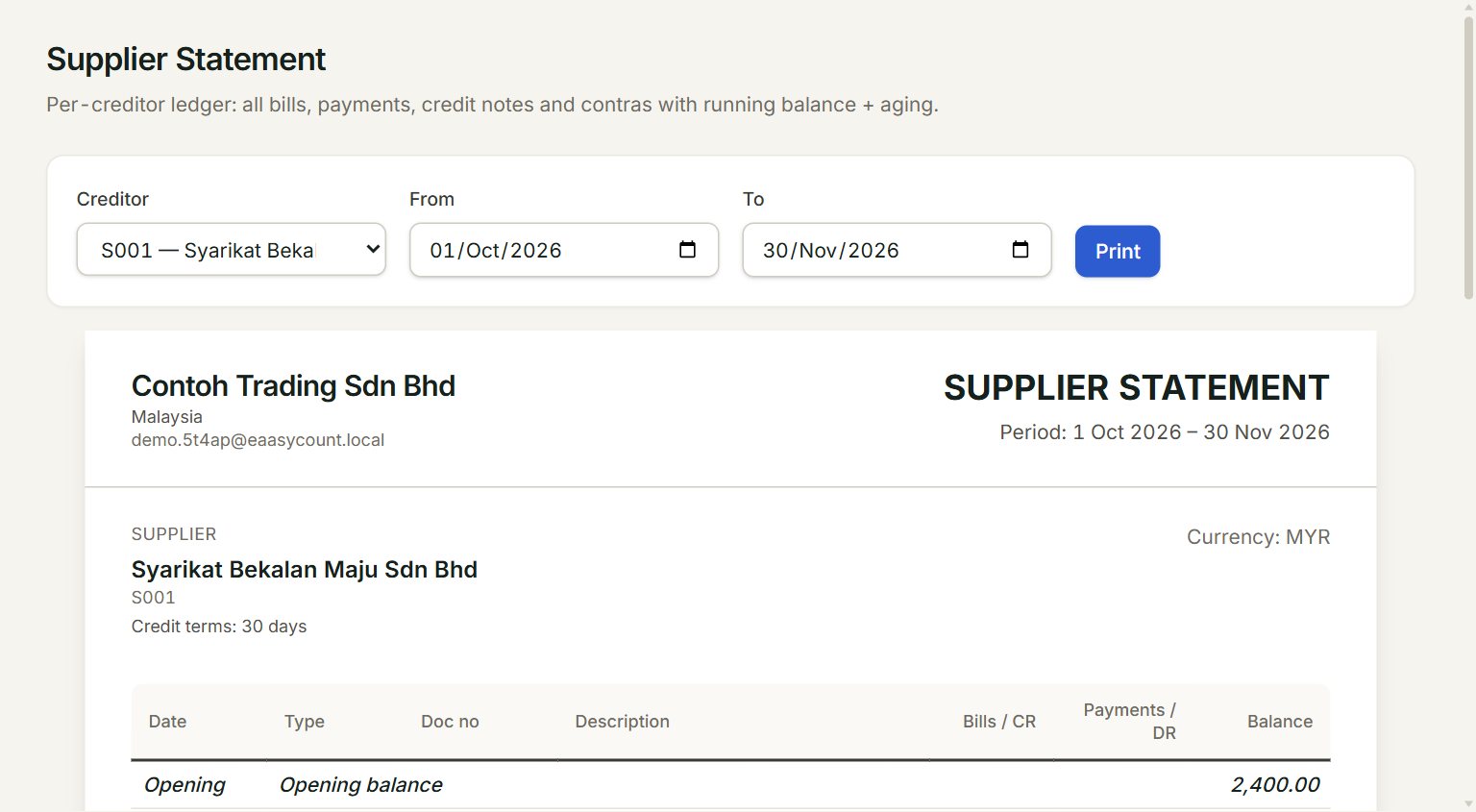
- Creditor: the supplier.
- From and To: the statement period.
- Print: prints the statement on its own, without the menu.
- Opening balance: what you owed before From.
- Bills / CR: what each bill added. Payments / DR: what each payment or credit note took off.
At the bottom, Closing balance is what you owe the supplier at To, and Aging shows how old the unpaid bills are.
Check a supplier's statement
- In the menu, open Reports, then Supplier statements.
- Choose the Creditor.
- Set From and To to the same dates as the supplier's statement.
- Tick off each bill and payment against their statement.
- Compare the Closing balance with the balance they show.
If a bill is on their statement but not here, key it in Purchase invoices. If a payment is on yours but not theirs, send them the payment details.
To keep a copy, click Print and choose Save as PDF as the printer. An Email button shows beside Print once the mail gateway is on and Customer/Supplier Statement is ticked there. It sends a short message with the closing balance; the statement is not attached.
If something goes wrong
- Print is grey: choose a Creditor first.
- No transactions in this period.: nothing happened between From and To. The opening and closing balances still show what you owe.