Promotions
Price rules for the counter, such as RM2 off an item or 5% off when the customer buys three.
On this page
A promotion is a price rule for the counter: an item discount, a promo price, or a saving for buying more. An automatic one sets the price by itself when the item is rung up on the POS. When several apply, the cheapest price wins.
The list
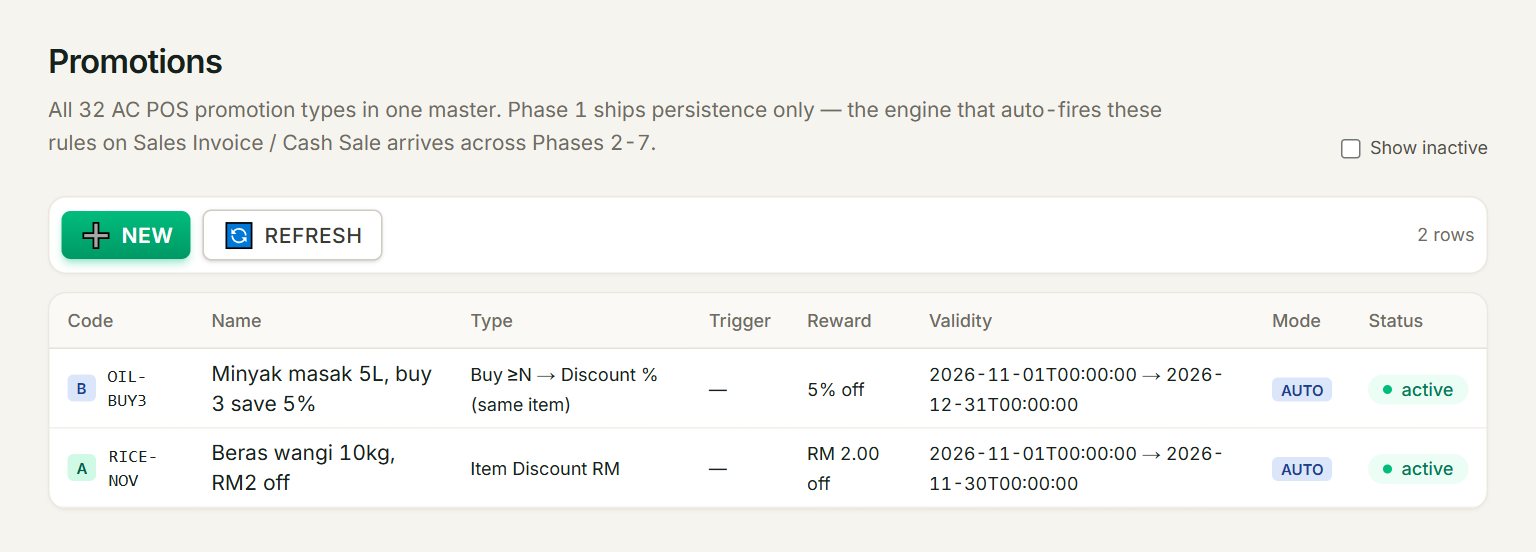
- NEW: starts a new promotion.
- A promotion: click it to open and change it.
- Type: what kind of rule it is.
- Validity: when it runs. always means no limit.
- Mode: AUTO applies by itself; MANUAL never does.
- Show inactive: lists switched-off promotions too.
Make a promotion
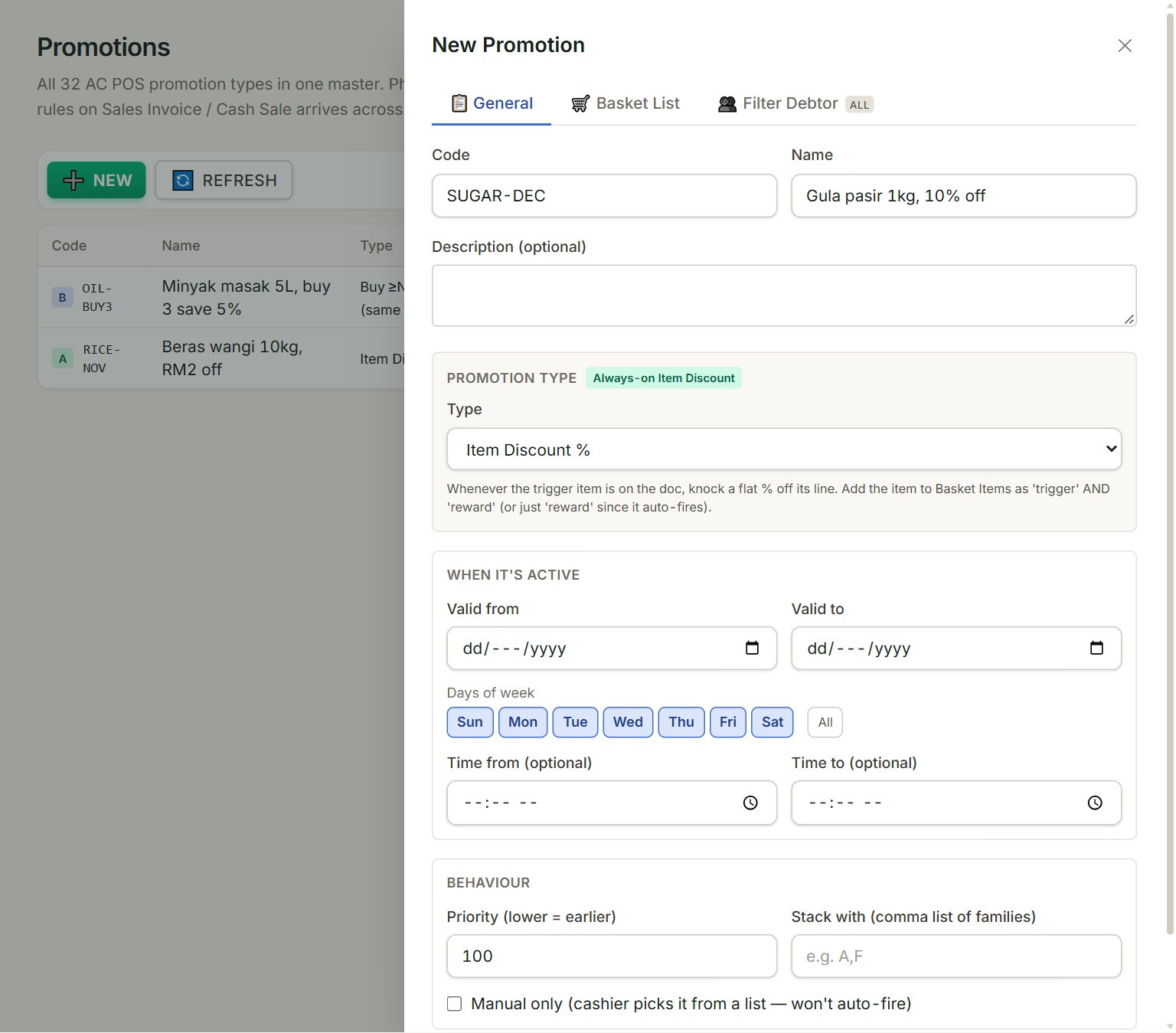
- Code: a short name, such as SUGAR-DEC. It cannot be changed later.
- Type: the kind of rule. The line under it says what that type does.
- Valid from and Valid to: the first and last day; empty means no limit.
- Days of week: the days it runs. Add Time from and Time to for a happy hour.
- Manual only: tick it and the promotion never applies by itself.
- 🛒 Basket List: the items it is for, and the reward.
- In the menu, open Sell, then Promotions, and click NEW.
- Key the Code and the Name, and pick the Type.
- Set Valid from, Valid to and the Days of week.
- Click 🛒 Basket List. Click + Reward and pick the item; for a "buy 3" rule, also click + Trigger, pick the item and key 3 in Qty.
- Under Settings, key the reward, for example 10 in Reward — Discount %. Click Save.
To limit a promotion to some customers, add them on 👥 Filter Debtor. To stop one, open it, untick Active and click Save. The type cannot be changed once saved: make a new promotion instead.
If something goes wrong
- "This promotion type needs at least one tier row.": on 🛒 Basket List, click + Add tier for each quantity step, then save.
- The price did not change at the counter: check the dates, the days, Manual only, and that the item is on 🛒 Basket List.