Budgets
Set a monthly budget for your income and expense accounts, to compare with what really happened.
On this page
Budgets holds a budget for each month of the year, per income and expense account. The Budget vs actual report then sets your real figures beside them, so you see early where you are over or under.
The screen
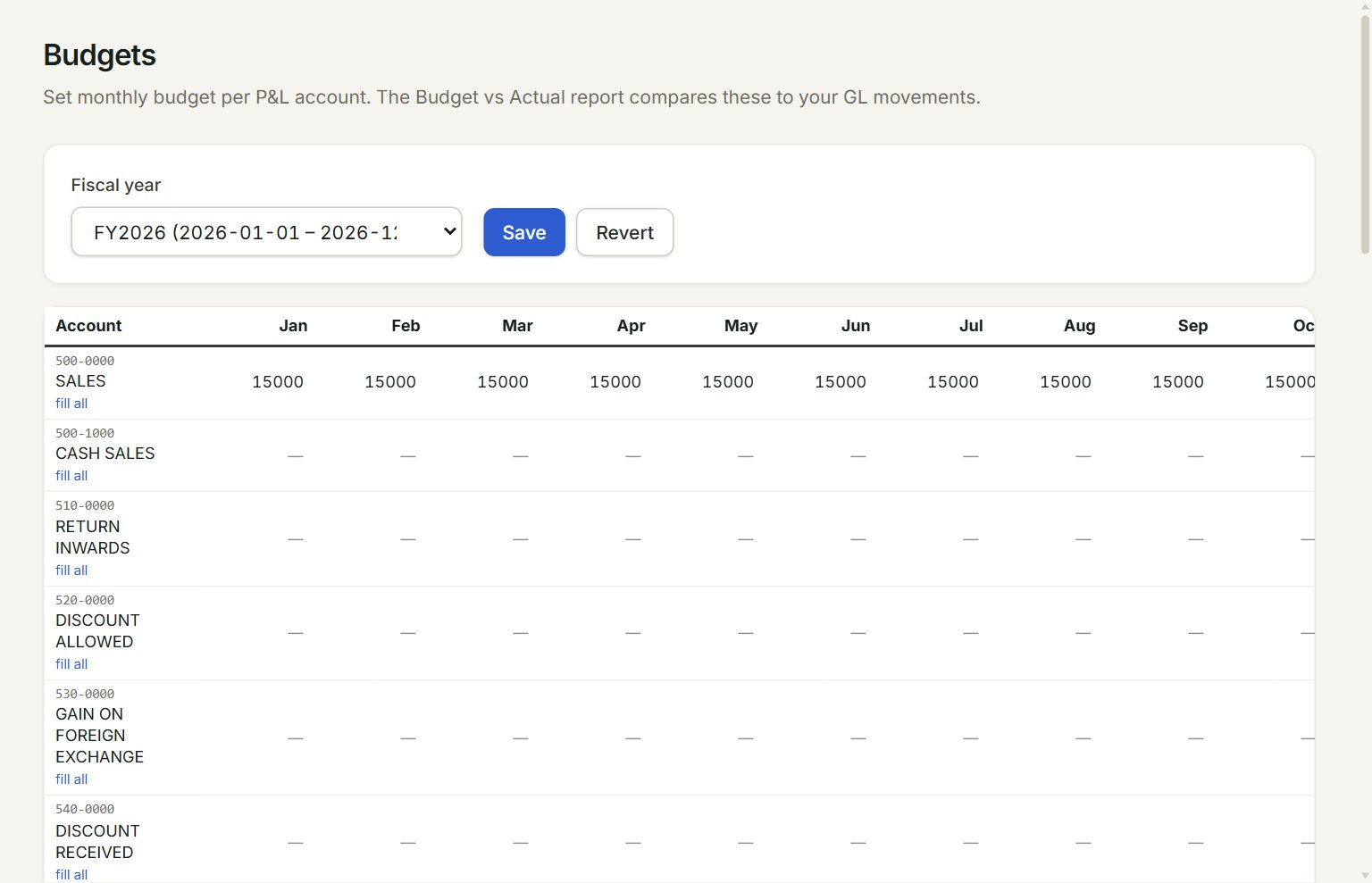
- Fiscal year: the year you are budgeting.
- Save: saves every change on the page.
- Revert: throws away the changes you have not saved.
- fill all: puts the same amount in all 12 months of that account.
- A month: type the amount for that account and month.
Scroll the table to the right for the last months and the Year total, which adds up each account's 12 months.
Set a budget
- In the menu, open Settings, then Budgets.
- Choose the Fiscal year.
- Find the account, for example SALES or SALARIES.
- Type an amount in each month, or click fill all, key one amount and click OK.
- Click Save. A note says how many cells were saved.
Only income, cost of sales and expense accounts are listed. Leave a month blank for no budget. To take a budget away, clear the month and save.
Compare with the actual figures
In the menu, open Reports, then Budget vs actual, and choose the same year. It shows each account's budget and actual, month by month.
If something goes wrong
- A row went blank after fill all: clicking Cancel in the fill all box empties the row. Click Revert to get the saved figures back.
- Your changes are gone: Revert and choosing another Fiscal year both drop what you have not saved. Click Save first.