Customer credit notes
Lower what a customer owes, for a discount given later, an overcharge or a claim.
On this page
A credit note lowers what a customer owes you: a discount agreed after the invoice, an overcharge, or a claim you accept. It credits the customer and books the amount to an account you choose, such as RETURN INWARDS or DISCOUNT ALLOWED. The screen's title is AR Credit Notes.
When goods come back into stock, post a sales return instead: it makes the credit note for you.
Give a credit note
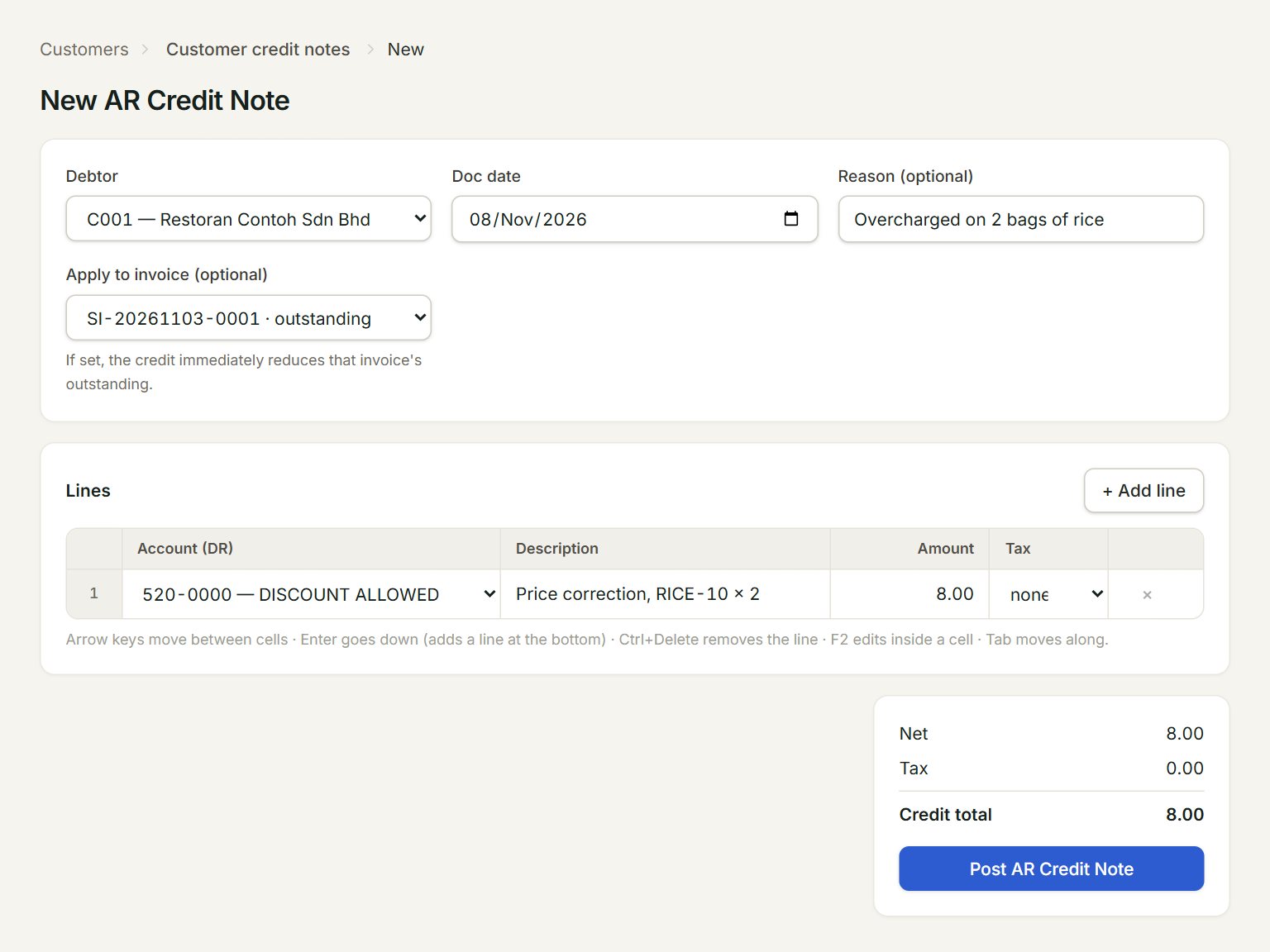
- Debtor: the customer you are crediting.
- Apply to invoice (optional): the invoice it reduces. Leave — hold as unapplied credit — to keep it as credit on the customer.
- Account (DR): where the credit is booked, for example DISCOUNT ALLOWED or RETURN INWARDS.
- Amount: the amount before tax. Pick a Tax code if the invoice charged tax.
- Credit total: what the customer's balance goes down by.
- Post AR Credit Note: posts the credit note.
- In the menu, open Customers, then Customer credit notes, and click New.
- Choose the Debtor, check the Doc date, and key the Reason (optional).
- In Apply to invoice (optional), pick the invoice it reduces.
- On each line, pick the Account (DR), and key a Description and the Amount.
- Click Post AR Credit Note, then Preview or Print it for the customer.
The list
AR Credit Notes lists each credit note with its Reason. Unapplied shows any part not yet set against an invoice. Select one and click Preview or Print.
If something goes wrong
- Post AR Credit Note is grey: choose the debtor first.
- "Add at least one line with amount > 0 and a description.": key both on at least one line.
- The invoice is not in Apply to invoice: only invoices with something still outstanding are listed. For a paid invoice, leave it as unapplied credit.