Journal entries
Post amounts straight to the accounts, for month-end work such as accruals and depreciation.
A journal entry moves amounts between accounts directly, with no invoice or payment behind it. Use it at month end for accruals and depreciation, and to correct a posting to the wrong account.
Your invoices, payments and stock documents post their own journals. They are not in this list: you see them in Account inquiry.
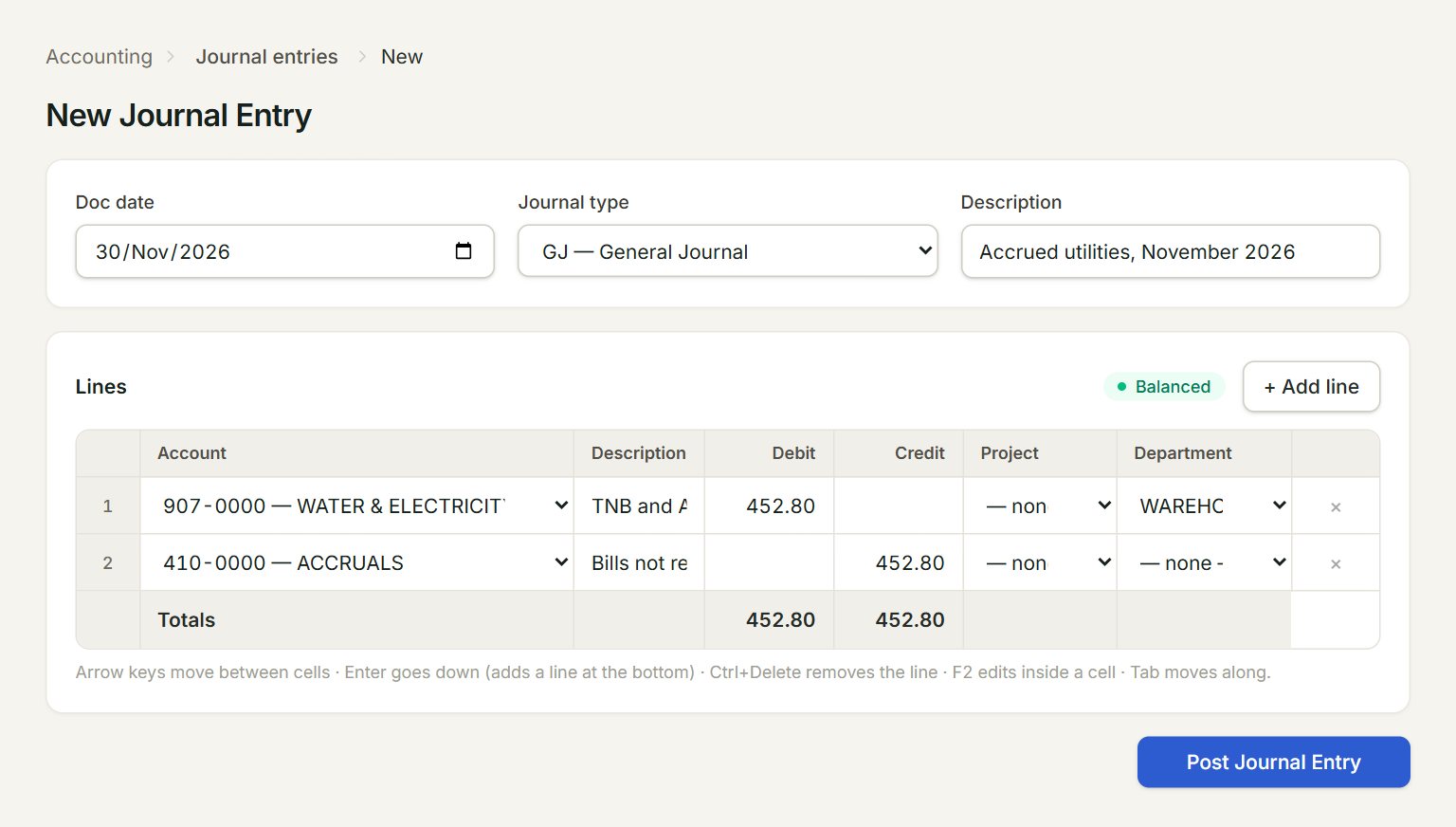
- Journal type: leave it at GJ — General Journal for most journals.
- Description: what the journal is for. It shows in the list and the reports.
- Account: the account for each line.
- Debit and Credit: key each line's amount on one side only.
- Balanced when the debits equal the credits. Otherwise it shows Out by and the difference.
- Post Journal Entry: saves and posts the journal.
Make a journal entry
- In the menu, open Accounting, then Journal entries, and click New.
- Set the Doc date and type a Description.
- On each line, choose the Account and key a Debit or a Credit. + Add line adds a line.
- If you track them, pick a Project or Department on the line.
- When it shows Balanced, click Post Journal Entry.
To change a journal, select it in the list and click Edit. The number stays the same and the old version is kept as void.
If something goes wrong
- Post Journal Entry is grey: the debits and credits are not equal yet. Look at Out by beside + Add line.
- Cannot post a manual journal to control account(s): …: debtors, creditors and stock move only through their documents. Post the invoice, payment or stock adjustment instead.
- Cannot post this document dated … is closed for this company: use a date in an open month, or ask your administrator to reopen it in Fiscal periods.